

English
Shift planner
The Planner is each person's schedule: shifts are assigned here, unfilled places are visible and the week is published. Published shifts become visible to the people assigned (in the field app) and attendance is checked against them.
Where it is: Workforce → Schedule → Planner. Who sees it: people allowed to read shifts and the roster; assigning and publishing needs plan shifts and the roster. Plan: Workforce planning module (Pro and Enterprise).
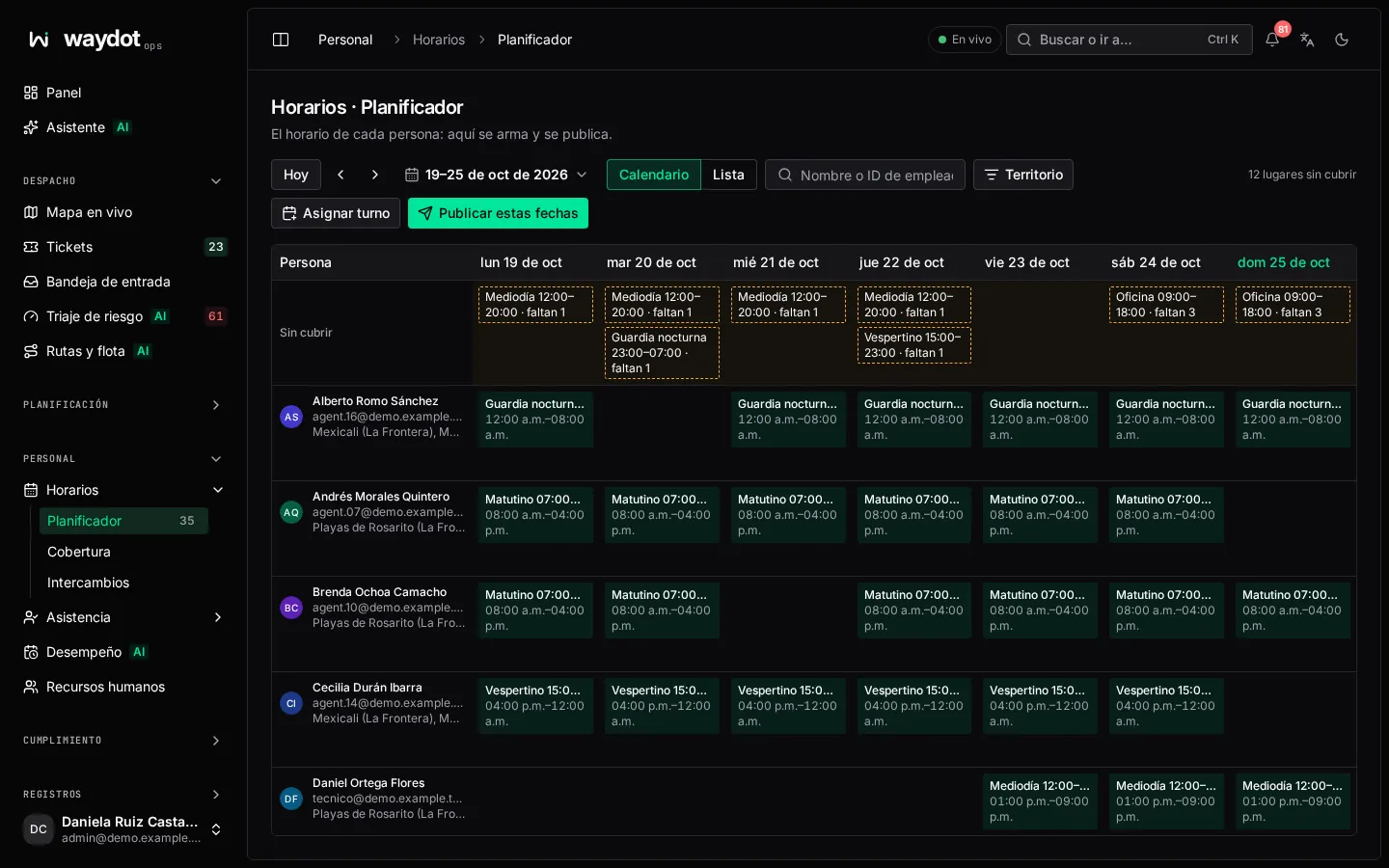
How to read it
One row per person and one column per day. Each cell shows the assigned shift and its hours. Draft shifts (not yet published) look different from published ones. On leave and Leave pending mark days with absences.
Above the grid, one row per shift shows each day's unfilled places (Morning · 2 short). Fully staffed when nobody is missing.
Controls:
| Control | What it does |
|---|---|
| This week, Previous week, Next week | Move through dates. |
| Search people | By name or employee ID. |
| Territory | Narrows to one territory. |
| Schedule view | Calendar (the grid by person and day) or List. |
| Assign shift | Opens assignment. |
| Publish these dates | Publishes the drafts for the visible dates. |
Assigning a shift
Click an empty cell (or a gap 1 person short, assign someone), or use Assign shift.
| Field | What it is |
|---|---|
| Shift and date | Which shift and which day. N shifts that day is shown. |
| Who works it? | Search by name or employee ID. Each person is checked for this shift and date only: approved leave and clashes with another shift block them. It shows N of M can take this shift. |
| Publish now | If ticked, the shift is published when assigned. Otherwise it stays a draft only planners see until you publish the week. |
Choose Assign and publish or Assign as draft. If it saves with warnings (for example overtime or short rest), Shift assigned, with warnings appears: review them before publishing.
Publishing
Publish these dates shows how many drafts will be published, including those of people not on the page because of the filter. On confirming Publish N shifts:
- each person sees their shifts in the field app and is notified;
- those days' attendance is compared against them (lateness, absences, hours);
- coverage and the forecast count them.
An assigned shift
Clicking a shift opens it:
| Item | What it is |
|---|---|
| Who and when | The person, shift, date and hours. |
| Late after | The time after which a clock-in counts as late (start + Grace). |
| On the roster | Whether it is published or Not yet — only planners can see it. |
| Added | How it got there: From a rotation, Assigned by hand or Changed by hand. |
| Last changed and Why it changed | The reason for the latest change. |
Move or change
Move or change this shift changes the shift or day for the same person. It asks Why is it changing? (a minimum length; kept with the shift). If the shift is already published, the person is told about the change; if it is a draft, nobody knows yet.
Remove
Remove from schedule takes the person off that shift. Shifts with recorded attendance can't be removed. If it had already been shown to them, they're told.
The Workforce summary
At the top of the Workforce screens the pending items show: N draft shifts to publish, N leave requests to review, N corrections to review.