

English
Intake
The intake inbox receives work that arrives outside the console: emails to your support mailbox, WhatsApp, Telegram or Slack messages, and tickets from your clients' systems (ServiceNow, Jira, Zendesk, Freshdesk, Freshservice or a webhook). Each message waits here until someone raises it as a ticket, attaches it to an existing one or rejects it.
Where it is: Dispatch → Intake. Who sees it: people allowed to work the intake inbox (operations managers and super administrators). Plan: Client intake module (Pro and Enterprise).
Channels are connected in Integrations.
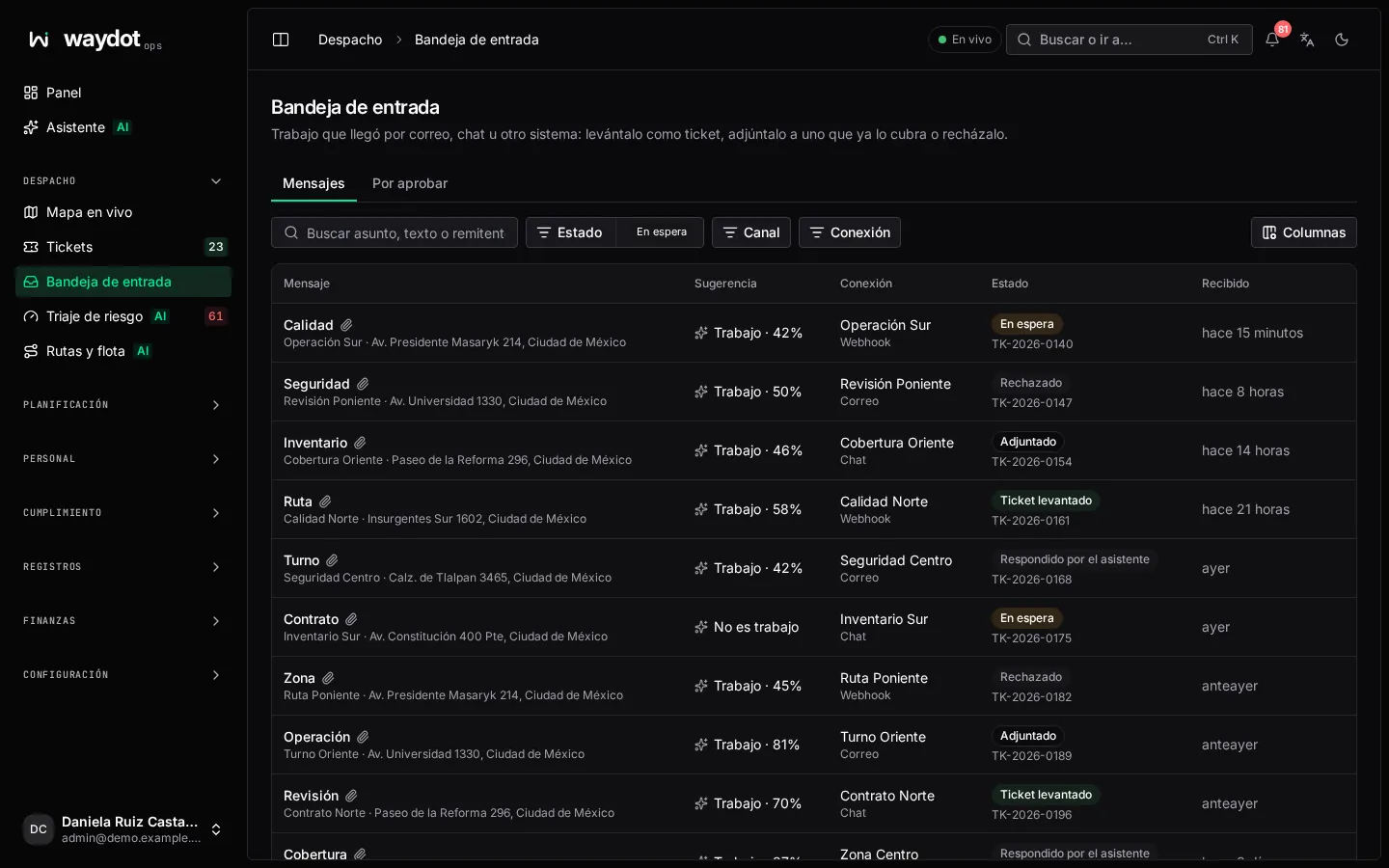
Messages
| Column | What it shows |
|---|---|
| Message | Sender, subject or first line. Unknown sender if not recognized. |
| Suggestion | Whether AI triage has read it: Work · 92% or Not work. |
| Connection | Which mailbox, number or system it came through. |
| Channel | Email, Chat or Webhook. |
| Received | When. |
Search by subject, text or sender, and filter by connection or channel.
Opening a message
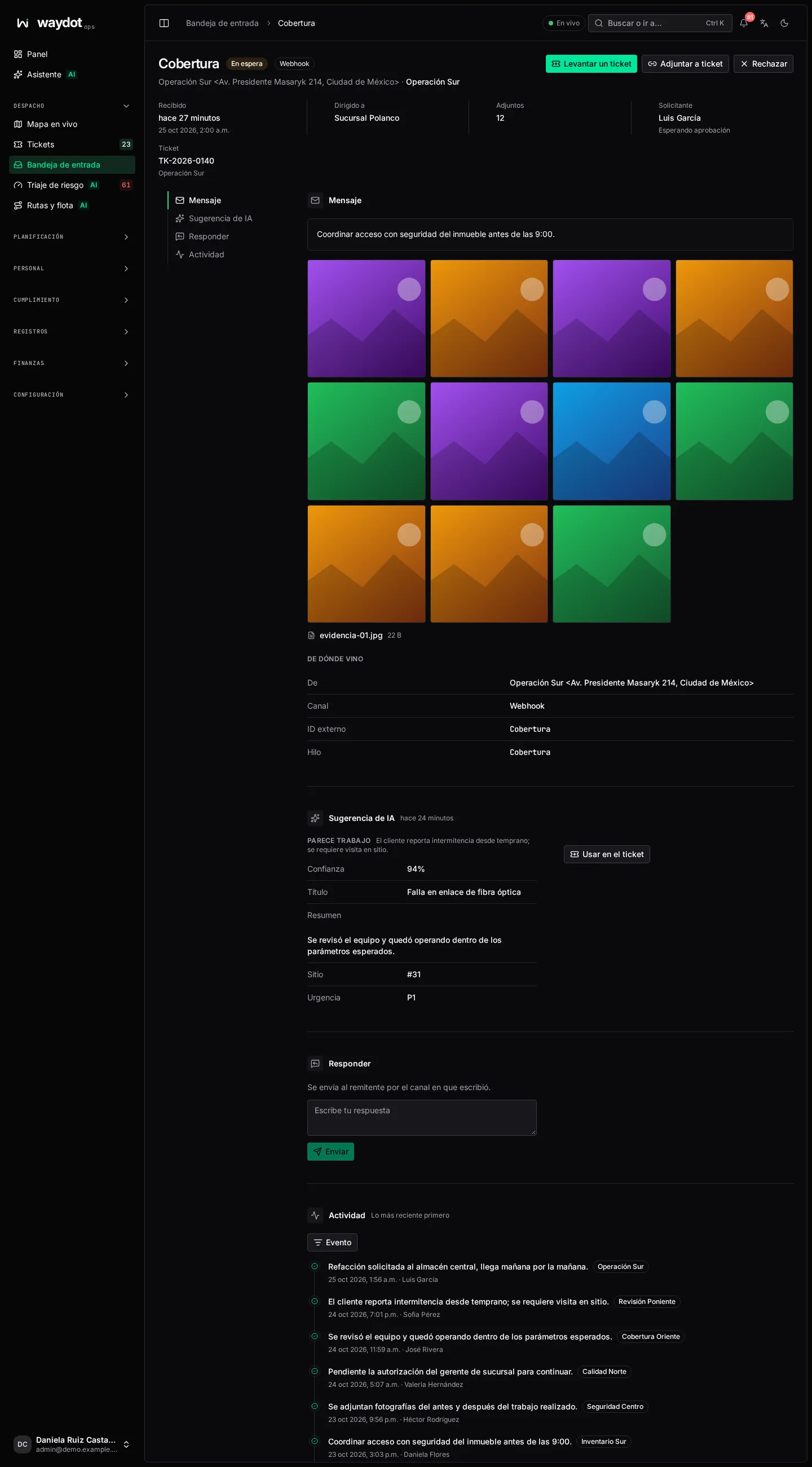
A message's page has four parts:
Message
The text as it arrived, From whom, Routed to (the client or site the connection assigned it to, or Not routed), the Thread, the source system's External ID, the recognized Requester and the Attachments. Files from the client separates Photos, Voice notes and Documents.
AI suggestion
If your workspace has triage on, a model has already read the message; if not, Suggest with AI does it now. The suggestion states:
| Item | What it is |
|---|---|
| Looks like work / Does not look like work and Confidence | Whether it is a service request. |
| Summary | What it asks for, in one line. |
| Site | The site it recognized, or Could not tell. |
| Urgency and Under the contract | The priority assessed against the client's contract criteria, with the criterion that justifies it. Not assessed if it couldn't. |
Use in the ticket passes the suggestion to the form. Nothing is filed until you raise it.
Raise a ticket
| Field | What it is |
|---|---|
| Site | Where the work is. Only sites your territories cover. |
| Title | Starts as the subject or first line of the message. |
| Urgency | One of the client's contract levels. If triage read it, its assessment is preselected. If the client's system sent its own priority, As its system sent it: High appears, already translated to the contract level with the connection's priority map. |
| Kind of work | The category. |
| Description | Left empty, the ticket carries the message as it arrived. |
The What this ticket commits to panel shows the contract deadlines. Choose Raise ticket: Ticket OT-… raised appears with Open. Attachments move to the ticket's Files from the client.
Outcome
What happened to the message and who decided:
| Outcome | Meaning |
|---|---|
| Waiting | Nobody has settled it. |
| Raised as a ticket | A ticket was created (by a person or Automatically). |
| Attached to a ticket | It was added as a note to an existing ticket. |
| Rejected | Dismissed, with its reason. |
| Answered by the WhatsApp assistant | The conversational assistant handled the question without needing a ticket. |
Other actions
| Action | When to use it |
|---|---|
| Attach to ticket | The message is a follow-up or a second report of the same fault. Search the ticket by reference or title; the message is added as a note. A closed ticket no longer takes messages. |
| Reject | Spam, wrong address or nothing to do. Type the Reason; the message leaves the inbox without a ticket. |
| Reply | Write to the sender on the channel they used. On WhatsApp it is sent in your name and the assistant stops answering that chat for a few hours, or until you choose Hand back to the assistant. |
Tickets that open themselves
A connection set to Open tickets by itself turns a message into a ticket without passing through the inbox when its site and priority are known: because the client's system sent it or because triage assessed it with enough confidence. The rest wait here. See Integrations.
Requesters
Requesters are your clients' people who can ask for service by WhatsApp or email. When they write, WAYDOT recognizes them by number or email, knows which client they represent and which stores they cover.
Awaiting approval
The Awaiting approval tab lists whoever wrote without being registered as a client's requester. Their messages wait until someone approves them. Each shows What they said (name, company, store) and how many messages are waiting.
Approve asks you to confirm which client they represent and what they can do; what they sent while waiting is processed and they're told they can now ask for service.
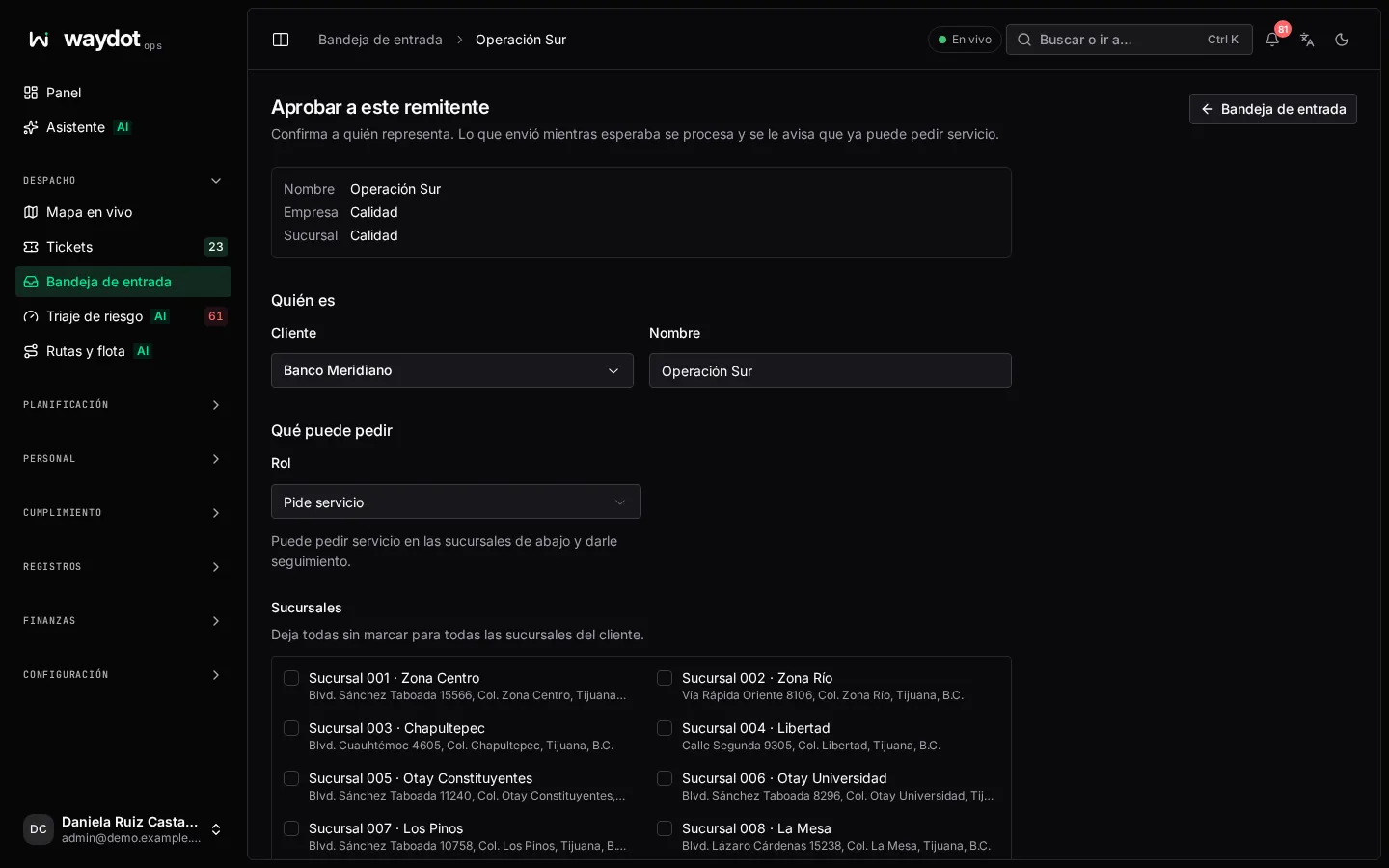
Requester details
| Field | What it is |
|---|---|
| Name | Who they are. |
| WhatsApp number / Email | At least one is required: that's how they are recognized when they write. |
| Client | Who they represent. |
| Role | Requests work: can ask for service at their stores and follow it up. Follows only: gets updates and asks about service, but can't request it. |
| Stores | The sites they cover. With none ticked, they cover all of the client's stores. |
Requesters are also added from the client's record (Add requester). Retire means whatever they send from then on is set aside unread; their open requests are kept.
What the requester receives
If the connection has Acknowledge senders, whoever wrote gets a notice that their message arrived and, later, the ticket reference and service updates (assigned, on the way, resolved). See What your clients see.