

English
People
People is the directory of every account in the workspace: office staff and field agents. From here you invite someone, give them roles and territories and manage their access.
Where it is: Records → People → Directory. Also Invite people in your account menu and Invite a person in search. Who sees it: with read the people directory in your scope, people in your territories; with read the whole people directory, everyone. Creating needs create user accounts; editing, edit user accounts; removing access, deactivate and reactivate accounts; changing roles, assign roles; temporary permissions, grant time-bounded direct permissions.
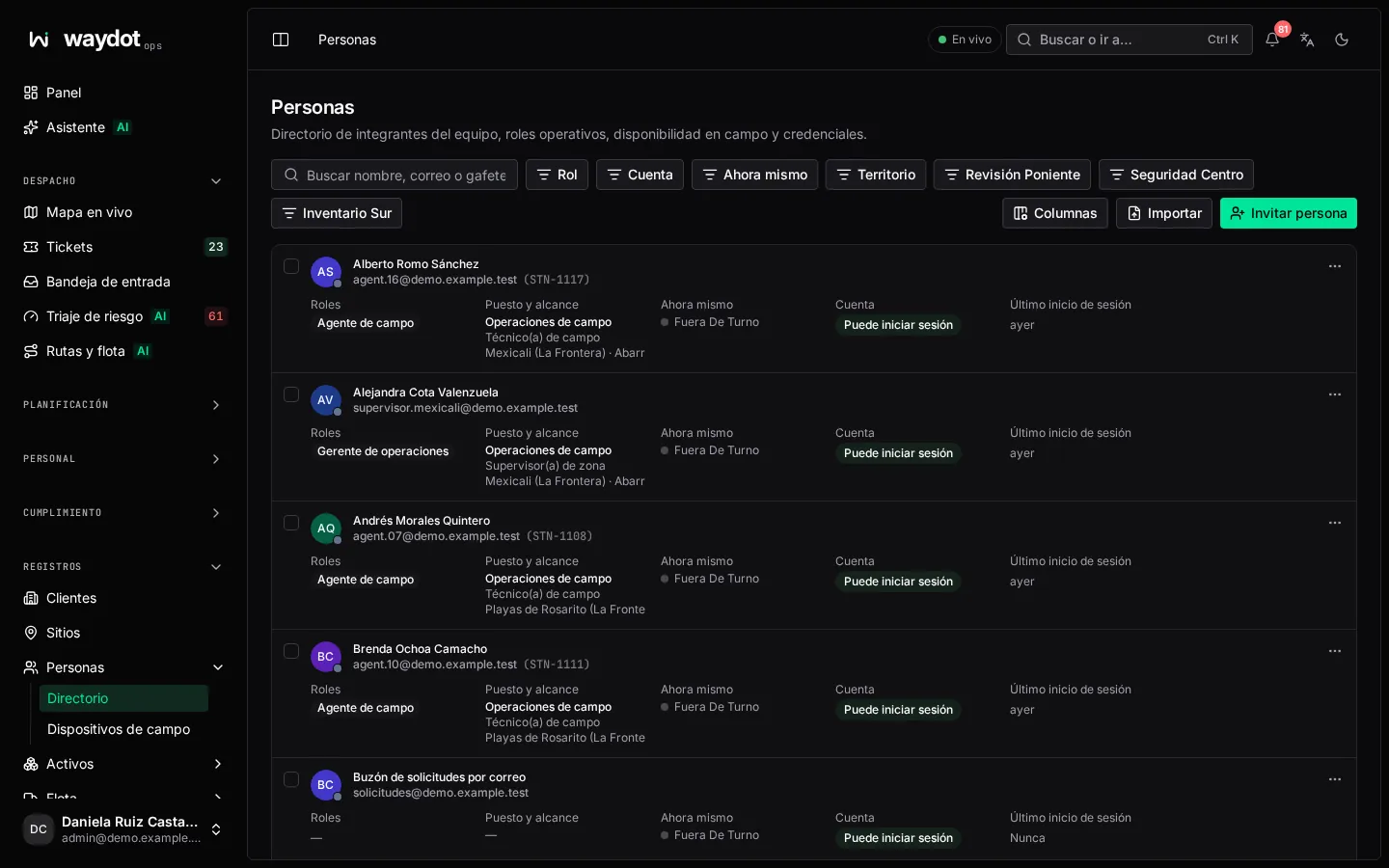
The directory
Team members, operational roles, field availability and credentials. Search by name, email or badge; filter by role, state (Can sign in / Access removed) and territory. Export CSV and Import from CSV (see Import records).
Each row's ⋯ menu: View details, Copy email address, Remove access… or Restore account.
Inviting a person
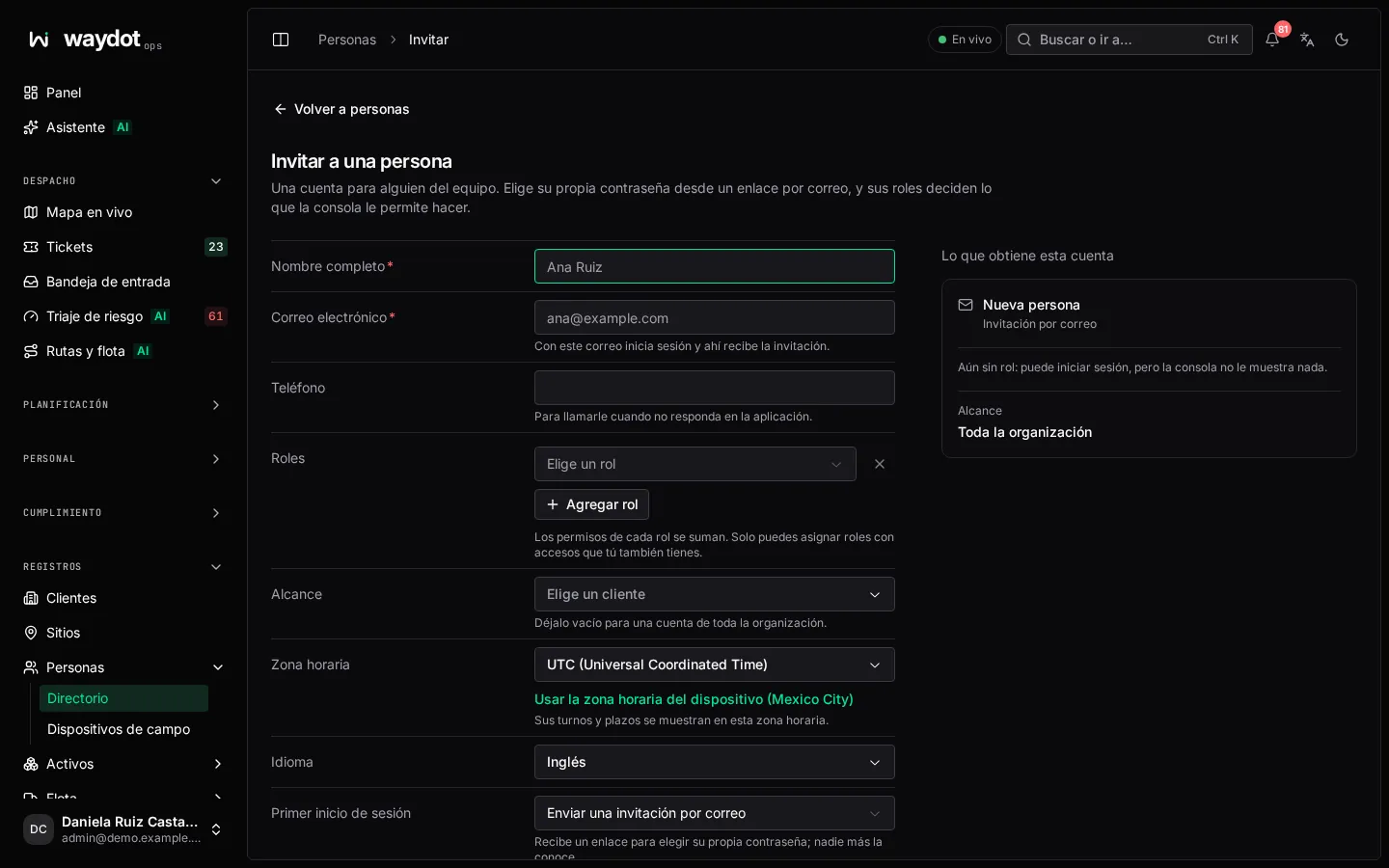
An account for someone on the team. They choose their own password from an emailed link, and their roles decide what the console lets them do.
| Field | What it is |
|---|---|
| Full name | For example Ana Ruiz. Required. |
| They sign in with it and receive the invitation there. Required. | |
| Phone | To call them when they don't answer in the app. |
| Roles | One or more (Add role). Each role's permissions add up. You can only assign roles whose access you also have. With no role they can sign in, but the console shows them nothing. |
| Scope | The territories (or whole client) they see and, for an agent, where their work comes from. Empty: the whole organization. A territory includes everything beneath it. |
| Skills | Dispatch ranks them first for jobs asking for these skills (networking, refrigeration…). Enter after each one. |
| Ticket capacity | How many open tickets they can hold at once, 1 to 50. Dispatch offers nothing above it. |
| Time zone | Their shifts and deadlines are shown in this zone. |
| Language | Spanish or English. |
| First sign-in | Email an invitation (recommended: they get a link to choose their password; nobody else knows it) or Set a password myself (only when they can't receive email; hand it over securely). |
On the right, What this account gets summarizes roles, scope, capacity and how they sign in. Send invitation (or Create account).
For field agents the Download the app link is shown so they have it on their phone before their first job.
Every active person counts for billing
See Billed users.
The person's page
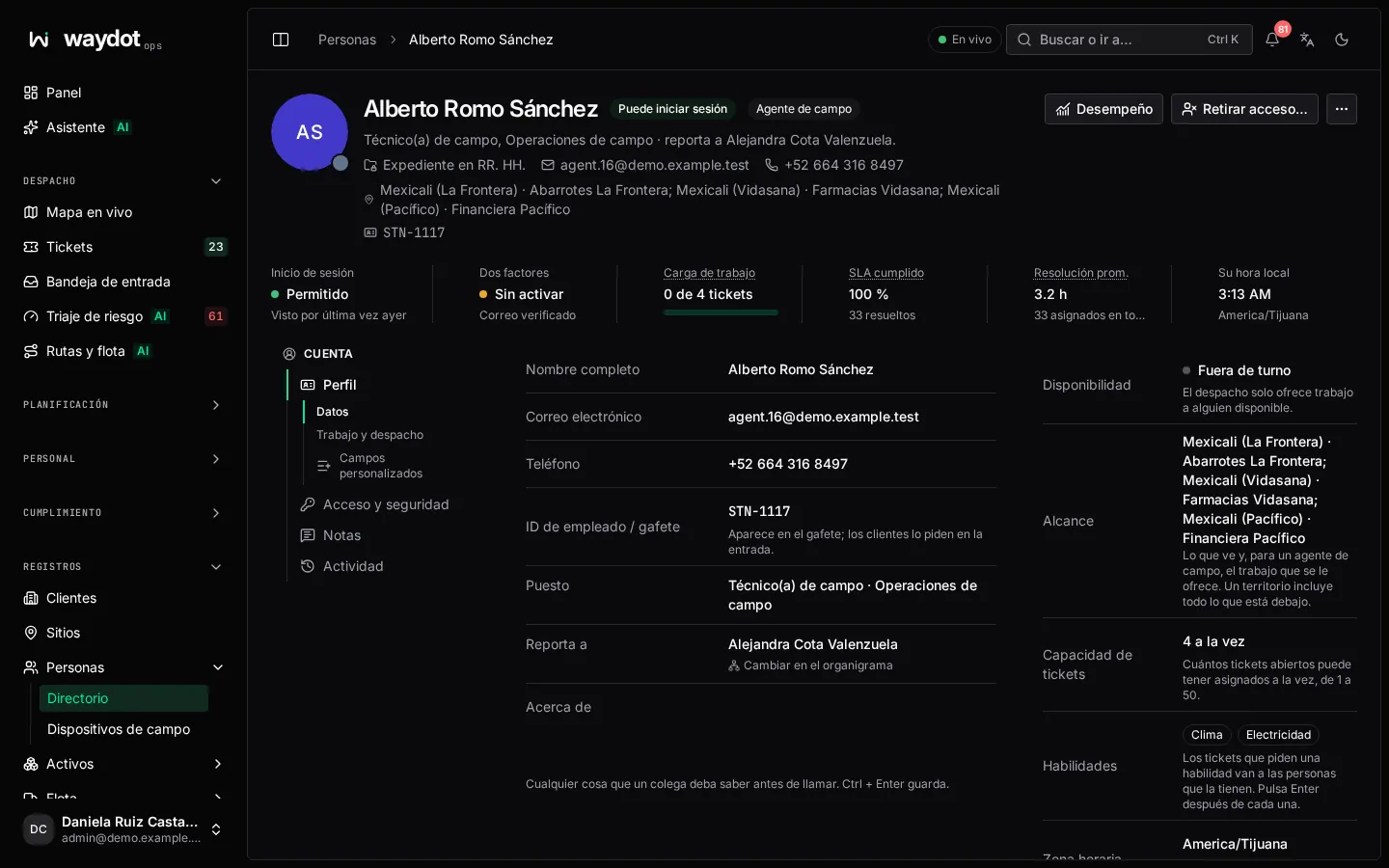
Header: photo, name, roles, state and who they report to. Quick facts: Signed in (Last seen… or Never signed in; Allowed or Blocked), Two-factor (On / Not enrolled), Workload (3 of 5 tickets, 60% of ticket capacity), SLA met, Avg. resolution and Their local time.
Sections: Details, Access & security, Performance, and with Human resources Employment and Personal file (see Employee file). Notes and Activity.
Details
| Field | What it is |
|---|---|
| Full name, email, phone | Edited in place. If the email is unverified: they haven't opened the link sent to them. |
| Employee / badge ID | Printed on the badge; clients ask for it at the door. |
| Reports to | From the organization chart. Change in organization chart / Place in organization chart. |
| About | Anything a colleague should know before calling. |
| Availability | On shift, on break, off. Dispatch only offers work to someone available. |
| Scope | What they see and, for an agent, the work offered to them. |
| Ticket capacity | 1 to 50, or No limit. |
| Skills | Empty means specialized work never reaches them. |
| Time zone and Language | |
| Emergency contact | Name, Relationship and Their phone: who dispatch calls when this person can't be reached on site. |
| Authorized clock-in from home | For someone who works from home: a point and a radius (25 to 1,000 m) from which their clock-ins count as verified. |
Access & security
Roles: the person's roles (Field agent, Operations manager…). The change applies on save; only people who manage access can change them.
Temporary grants: Grant permission gives one permission on top of their roles, with a reason, until it expires or is revoked:
| Field | What it is |
|---|---|
| Act on and the permission | The specific capability (for example Assign tickets). |
| Reason | Kept in the audit log. E.g. Covering for the senior network engineer. |
| Expires | Date and time. Blank: until revoked. |
Each grant shows who gave it, when it expires or expired, and Revoke…: the person loses that access immediately, unless a role still grants it. Requires the custom roles module (Pro and Enterprise).
Sign-in and recovery:
| Action | What it does |
|---|---|
| Sign out all devices… | Ends all their browser and mobile sessions. Use it when a device is lost. |
| Reset two-factor… | Clears their authenticator so they can enroll a new one. Confirm who you're speaking to first. |
Removing and restoring access
Remove access… signs them out everywhere and blocks sign-in. Their records and history are kept and they stop counting as a billed user. Restore access lets them sign in again with their previous password and the access their roles give.
In ⋯ also: Change photo, Copy email, Copy account ID and Employee file in HR.
Performance
The person's scorecard. See Performance.