

English
Single sign-on (SSO)
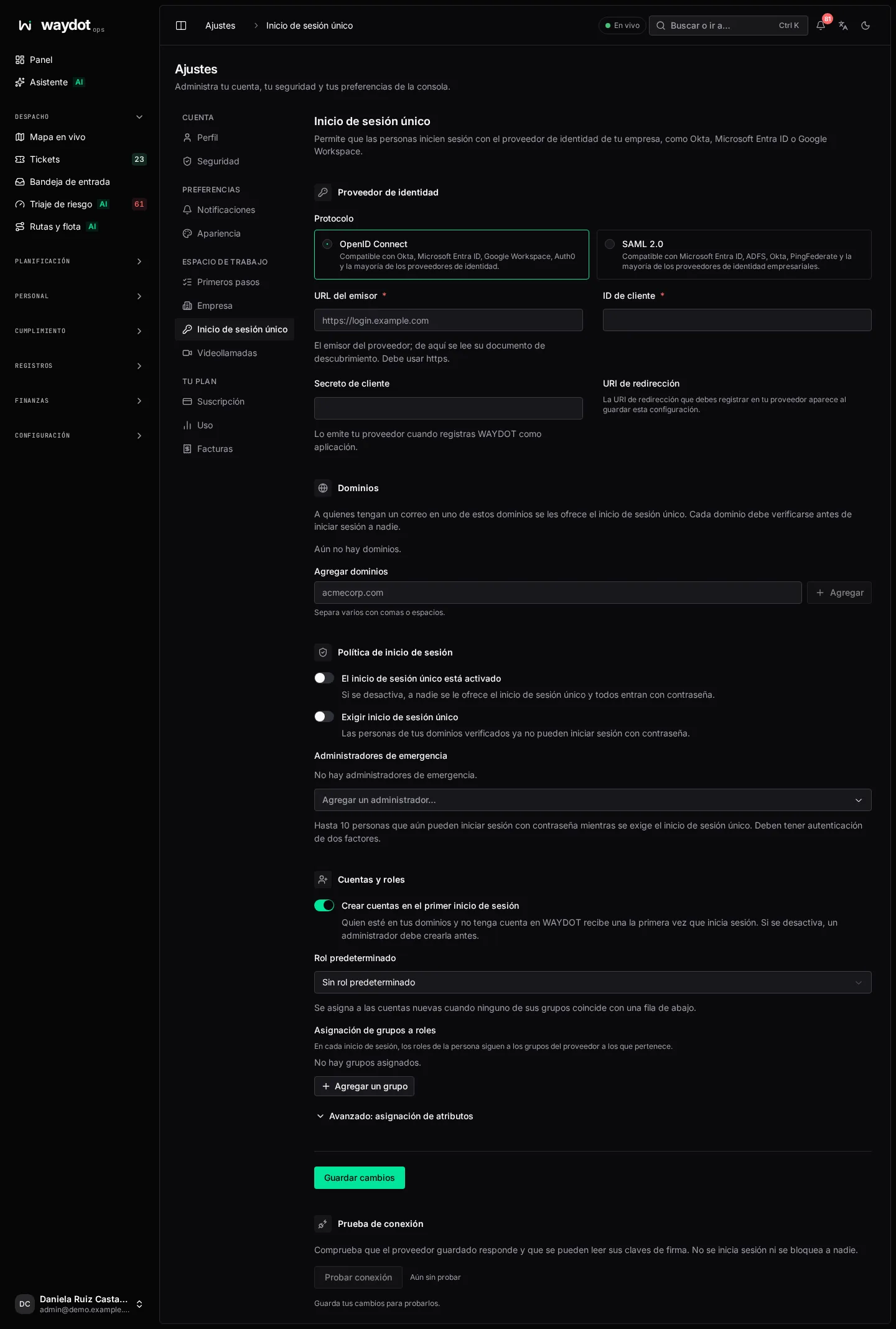
Single sign-on lets people sign in to WAYDOT with your company's identity provider (Okta, Microsoft Entra ID, Google Workspace, Auth0, ADFS, PingFederate…) instead of a WAYDOT password. Joiners, leavers and the second factor are then handled by your provider.
Where it is: Settings → Single sign-on. Who sees it: people allowed to read platform settings. Changing it needs change platform settings; without it the page is read-only. Plan: Single sign-on (SSO) module, included in Enterprise.
Before you start
- Administrator access to your identity provider, to register WAYDOT as an application.
- Access to DNS for your company's email domains, to verify them.
- At least one WAYDOT administrator with two-factor authentication on, to act as emergency administrator.
1. Identity provider
Choose the Protocol:
| Protocol | When to use it |
|---|---|
| OpenID Connect | Works with Okta, Microsoft Entra ID, Google Workspace, Auth0 and most providers. The simplest option. |
| SAML 2.0 | Works with Microsoft Entra ID, ADFS, Okta, PingFederate and most enterprise providers. |
OpenID Connect
| Field | What it is |
|---|---|
| Issuer URL | Your provider's issuer; WAYDOT reads its discovery document from there. Must start with https://. |
| Client ID | The identifier your provider gave WAYDOT when you registered it as an application. |
| Client secret | The secret your provider issued. Once saved it is never shown again; type a new one only to replace it. |
| Redirect URI | Appears after saving. Copy it with Copy the redirect URI and register it with your provider as the application's callback. |
SAML 2.0
The fastest way is to import the provider's metadata: use Upload metadata file or Paste metadata XML instead. The fields fill themselves; review and save.
| Field | What it is |
|---|---|
| Provider entity ID | The identifier (issuer) your provider signs its assertions with. |
| Sign-in URL | Where people are sent to sign in (HTTP-Redirect binding). Must use https. |
| Sign-out URL | Optional. Where the provider receives sign-out responses. |
| Signing certificate | The X.509 certificate your provider signs with, as PEM or base64 text. Shows its validity: Valid until…, Expires on…: prepare the new certificate, or Expired on…: sign-ins are refused. Once saved it is never shown. |
| Next signing certificate | When your provider rotates its key, paste the new certificate here. Both are accepted until you remove the old one, so there is no outage. |
After saving, Give these to your provider shows the values to register there (each with a copy button):
| Value | What for |
|---|---|
| Entity ID (audience) | WAYDOT's identifier. |
| Reply URL (assertion consumer service) | Where your provider sends the sign-in response. |
| Sign-out URL | For sign-out. |
| Metadata URL | If your provider accepts metadata, this URL is enough. |
2. Domains
Anyone with an email at one of these domains is offered single sign-on. You can register 1 to 20 domains.
- In Add domains type one or several (separated by commas or spaces), for example
acmecorp.com. - Save.
- Copy the Verification record and publish it as a TXT record in each domain's DNS.
- Choose Verify domains. DNS changes can take time to appear; if it says the record wasn't found yet, try again later.
Each domain shows Verified, Not verified or Not saved. No domain signs anyone in until it is verified.
3. Sign-in policy
| Setting | What it does |
|---|---|
| Single sign-on is on | Turns everything on or off. Off, nobody is offered it and everyone signs in with a password. |
| Require single sign-on | People at your verified domains can no longer sign in with a password, administrators included. Unverified domains keep using passwords. |
| Emergency administrators | Up to 10 people who can still sign in with a password while single sign-on is required, in case the provider fails. They must have two-factor authentication; those without it are marked No two-factor and couldn't get in. |
Before requiring it
If the provider fails or is misconfigured, only the emergency administrators can get in. Test the connection and choose at least one emergency administrator before saving. They sign in through the Administrator emergency access link on the sign-in screen.
4. Accounts and roles
| Setting | What it does |
|---|---|
| Create accounts at first sign-in | Anyone at your domains without a WAYDOT account gets one the first time they sign in. Off, an administrator must create it first in People. |
| Default role | Given to new accounts when none of their groups matches the group table. No default role leaves them without a role until someone assigns one. |
| Group to role mapping | Each row links a group in your provider (type its exact name) to a WAYDOT role. On every sign-in, the person's roles follow their groups: remove them from a group in your provider and they lose the role in WAYDOT the next time they sign in. Add a group adds rows. |
Advanced: attribute mapping
The claim in the provider's response each detail is read from: Email, First name, Last name, Full name and Groups. Leave a field empty to use the standard claim. Only change it if your provider uses different names.
5. Connection test
Test connection checks that the saved provider answers and its signing keys can be read (for SAML, that the configuration is complete and the certificate valid). It doesn't sign anyone in or lock anyone out. It shows The provider answered or The provider could not be reached, and when it last tested successfully. Save your changes before testing them.
Saving
Changes are saved together with Save; Discard changes returns to what was saved.
What people experience
See Signing in with single sign-on. When it is required, WAYDOT doesn't ask those people for its own second factor: your provider does.