

English
Account security
Where it is: Settings → Security. Who sees it: everyone, for their own account.
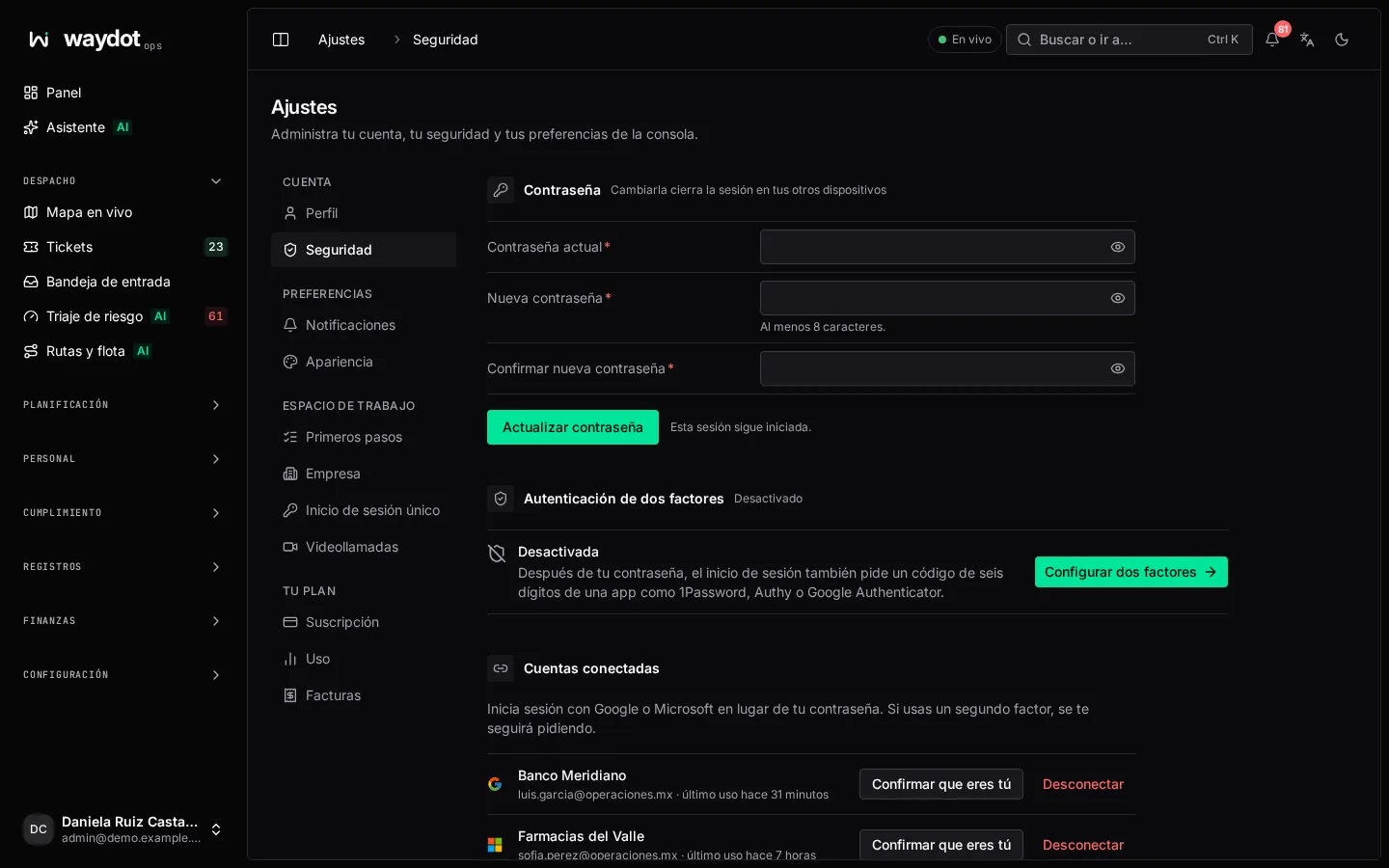
Changing your password
| Field | What to type |
|---|---|
| Current password | The one you use today. If you just confirmed your identity with Google or Microsoft, you can leave it blank for a few minutes. |
| New password | At least 8 characters. |
| Confirm new password | The same again. |
Choose Update password. Changing it signs out your other devices (including the field app); this session stays signed in.
Two-factor authentication
Besides the password, signing in asks for a six-digit code from an authenticator app. The box shows the state:
| State | Meaning |
|---|---|
| On | Working. Shows how many recovery codes you have left. |
| Off | Only the password is asked. |
| Required by your organization | Your role requires it: turn it on before the deadline or the console will close. |
| Setup not finished | You started setting it up but didn't enter a code, so it is still off. Start again to get a new key. |
Turning it on
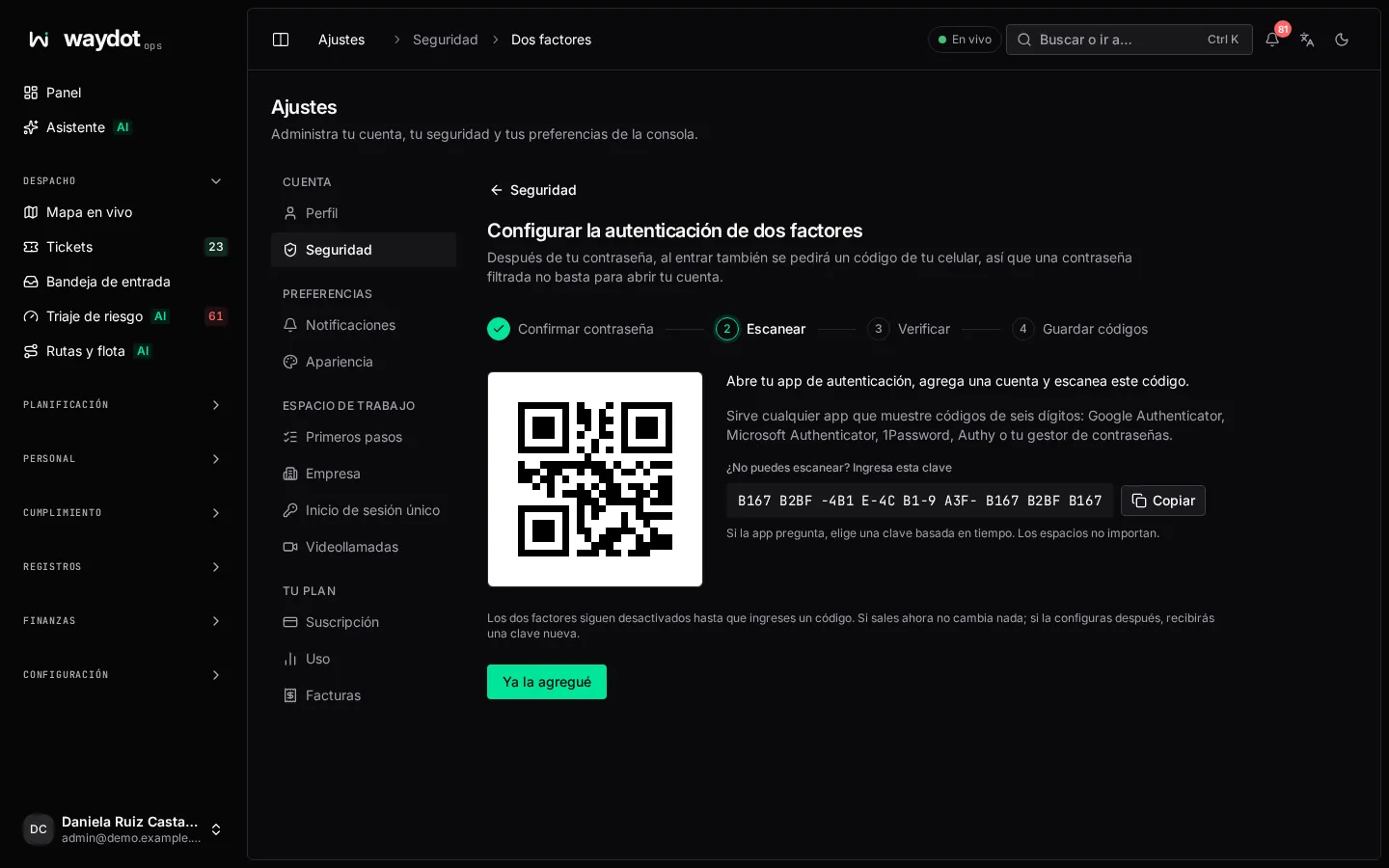
- Choose Set up two-factor. A four-step page opens.
- Confirm password: type your password. It is asked again because changing your second factor should need more than an open session.
- Scan: open your authenticator app (Google Authenticator, Microsoft Authenticator, 1Password, Authy or your password manager), add an account and scan the QR code. If you can't scan, use Can’t scan? Enter this key and Copy setup key; if the app asks, choose a time-based key. Choose I’ve added it.
- Verify: type the code your app shows now for WAYDOT (it changes every 30 seconds) and choose Verify and turn on.
- Save codes: your recovery codes appear. Each one lets you in once if you lose your phone. Use Copy all or Download .txt, keep them away from this computer, tick I’ve saved these codes somewhere safe and choose Complete.
If you leave halfway nothing changes: two-factor stays off until you enter a code.
Recovery codes
- View recovery codes: asks for your password and shows the ones you have left.
- New codes: generates a new set; the old ones stop working immediately. Use it if you've used several or think someone saw them.
Changing phone or turning it off
To move it to a new phone, turn it off and set it up again.
Turning it off asks for your password and a code from your app or a recovery code, so a password alone can't remove it. If your organization requires it, you'll be asked to set it up again.
If you lost your phone and codes, an administrator can use Reset two-factor on your record in People.
Connected accounts
Connect Google or Microsoft to sign in with that account instead of your password. If you use a second factor, it is still asked.
| Action | What it does |
|---|---|
| Connect | Takes you to the provider and connects the account. |
| Confirm it’s you | Confirms your identity with the provider. For the next few minutes you can change your password or second factor without typing the current password. |
| Disconnect | You can no longer sign in with that account. Asks for your password, or confirm with the provider first. |
If it says Not available in this workspace, your company turned that provider off.
Signed-in devices
The list shows every browser and every phone with the field app that has a session open with your account: the device, IP address and when it was last used. Yours says This device.
- Sign out… on a row disconnects that device at once. It will need the password (and two-factor code) to come back in.
- Sign out other devices closes every other browser and field app session. This device stays signed in.
Close any session you don't recognize and then change your password.
Single sign-on
If your company uses single sign-on, a summary appears at the bottom of the page and, with permission, Manage single sign-on. See Single sign-on.