

English
First-run setup
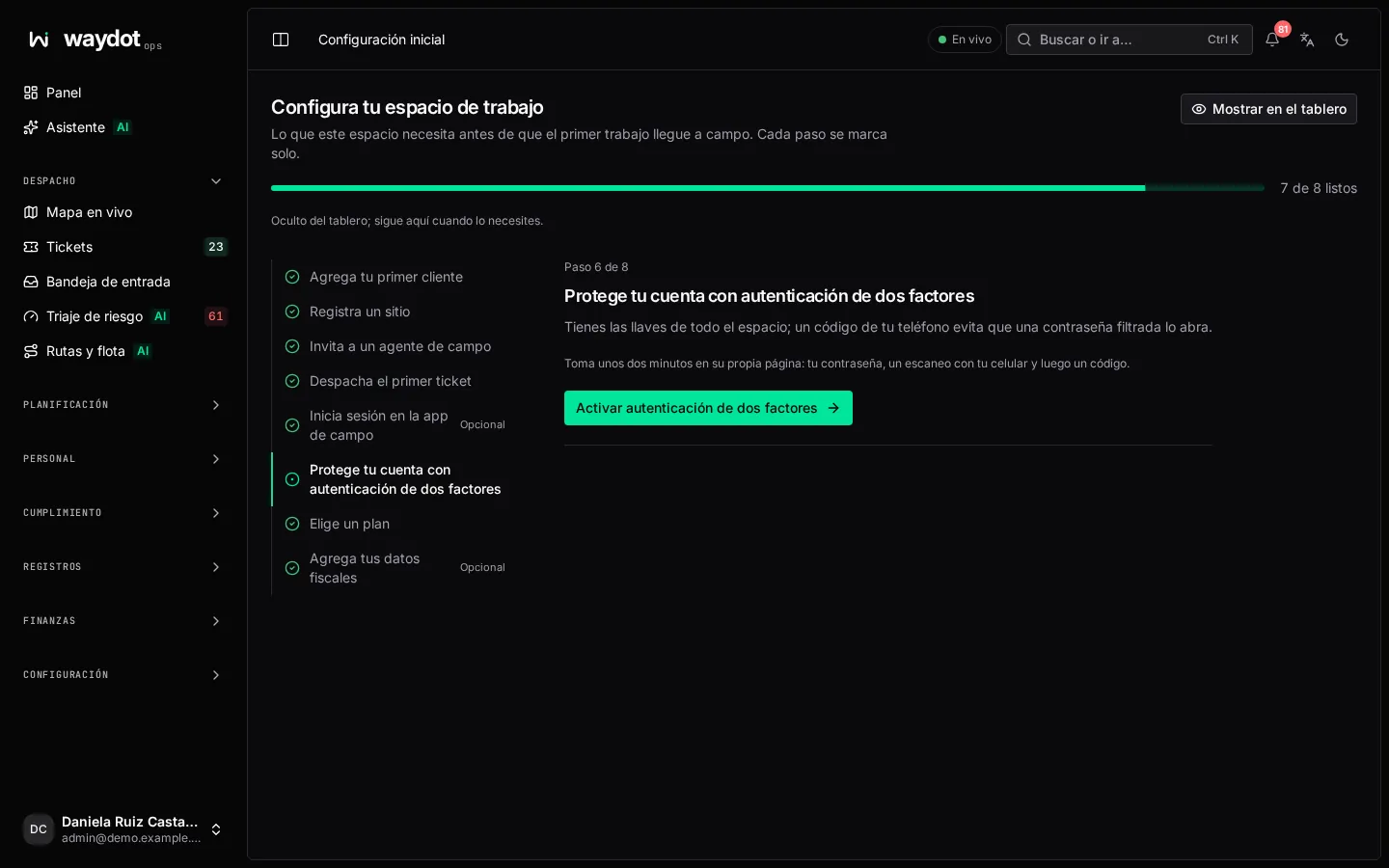
Set up your workspace is a list of steps that takes a new workspace to its first job in the field: a client, a site, an agent, a dispatched ticket, your account's security and the subscription. Each step ticks itself when WAYDOT detects it is done, whether you did it from here or from any other screen.
Where it is: your account menu → Settings → Getting started, or the Put your operation to work card on the Dashboard while anything is pending. Who sees it: people with the Manage the organization permission (super administrators).
How it works
- The left column lists the steps with their state. The top bar says how many are done (5 of 8 done).
- Choose a step to see what it is and why it matters. If it can be done right there, the form appears on the right; otherwise a button takes you to the right screen.
- When it's done the step changes to Done and the screen suggests the next one (Next: …).
- When only optional steps remain you'll see Everything the team needs is in place. When all are complete, Your workspace is set up appears with Go to the dashboard.
Controls:
| Control | What it does |
|---|---|
| Skip | Marks a step Skipped without doing it. It stays in the list and you can Undo skip. |
| Hide from dashboard / Show on dashboard | Removes or restores the setup card on the Dashboard. The list stays available in Settings. |
| Close setup | Leaves the screen. |
Step states
| State | Meaning |
|---|---|
| To do | Not done yet. |
| Next | The step worth doing now. |
| Waiting | Needs another step first (Do this first: …). For example, dispatching a ticket needs a site and an agent. |
| Done | WAYDOT detected it is done. |
| Skipped | You skipped it. |
| Unknown | It couldn't be checked right now. Open the screen again. |
The steps
1. Add your first client
The client is the company you do field work for; its contract sets ticket priorities and response times.
| Field | What it means |
|---|---|
| Name | What your team calls it, for example Oxxo North. Required. |
| Legal name | Optional. The legal name. |
The client starts with the standard service levels P0 to P3. The contract, contacts and SLAs are adjusted later on its record. See Clients.
2. Register a site
A site is a place where work happens. Tickets are always raised at a site.
| Field | What it means |
|---|---|
| Client | Who the site belongs to. |
| Site name | Unique for that client, for example the store number. |
| Address | Where it is. |
Afterwards place the pin and geofence on the site record so agents' arrivals are recorded correctly. See Sites.
3. Invite a field agent
| Field | What it means |
|---|---|
| Name | The agent's full name. |
| Email address | The invitation to choose a password goes here. |
Send invitation creates the account with the field agent role and emails them. Their skills, territories and schedule are set on their record. See People.
4. Dispatch the first ticket
Opens the ticket form on its own page. The step ticks when a ticket is assigned to a field agent. See Raise a ticket.
5. Sign in to the field app (optional)
Nothing to do in the console: it ticks when an agent signs in on their phone. See field agents opens the list so you can check who has signed in. See The field app.
6. Protect your account with two-factor authentication
You hold the keys to the whole workspace; a code from your phone stops a leaked password from opening it. It takes about two minutes in Account security.
7. Choose a plan
Opens the plans so you choose one and how to pay (card, OXXO or SPEI). It ticks as soon as the subscription starts. See Subscription and plan.
8. Add your tax details (optional)
Your RFC, legal name and tax regime, so WAYDOT invoices arrive with a deductible CFDI instead of one issued to the generic RFC. They live in Settings → Company. See Company.
The Dashboard card
While steps remain, the Dashboard shows Put your operation to work with the next step (First: …) and these options:
- View the dashboard: hides the card to see the Dashboard as your team will see it.
- See plans: opens the plan choice (nothing is charged before the trial ends).
- Bring your team → Invite people: opens the invitation for supervisors and dispatchers.