

English
Custom fields
Custom fields add the data your operation needs that doesn't come built in: a purchase order on the ticket, an employee's external payroll number, a vehicle's cost center, or proof asked only for certain kinds of leave.
Where it is: Settings → Custom fields. Who sees it: people allowed to read platform settings; changing it needs change platform settings. Limit by plan: Basic up to 10 fields, Pro up to 100, Enterprise unlimited.
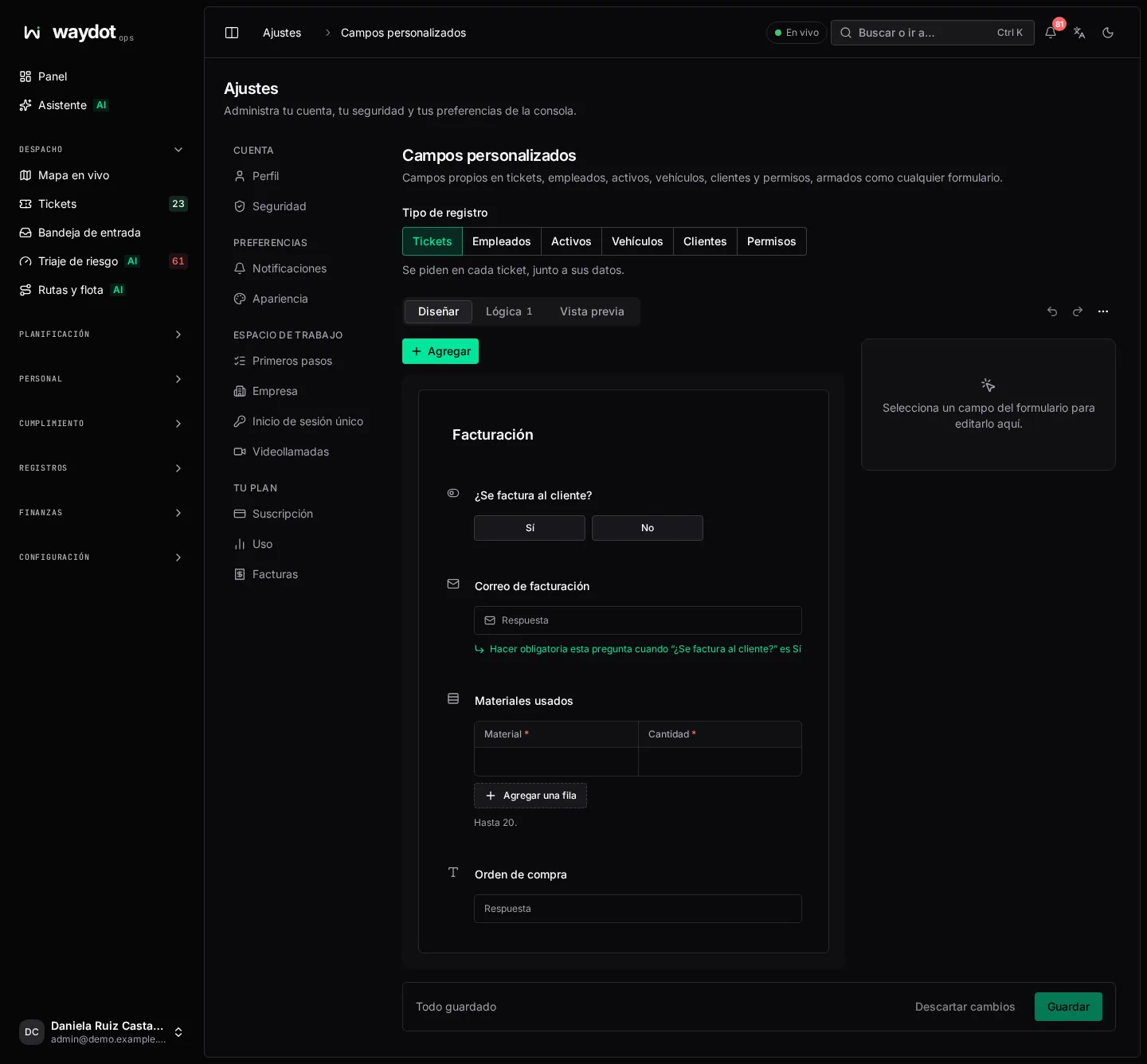
Where they appear
Choose the Record type at the top. Each behaves as follows:
| Record type | Where the fields are filled |
|---|---|
| Tickets | Asked on every ticket, next to its details, in the console. |
| Employees | Kept on each person's record. Custom attributes that existed before are here as text fields. |
| Assets | On each asset's record. |
| Vehicles | On each vehicle's record. |
| Clients | On each client's record. |
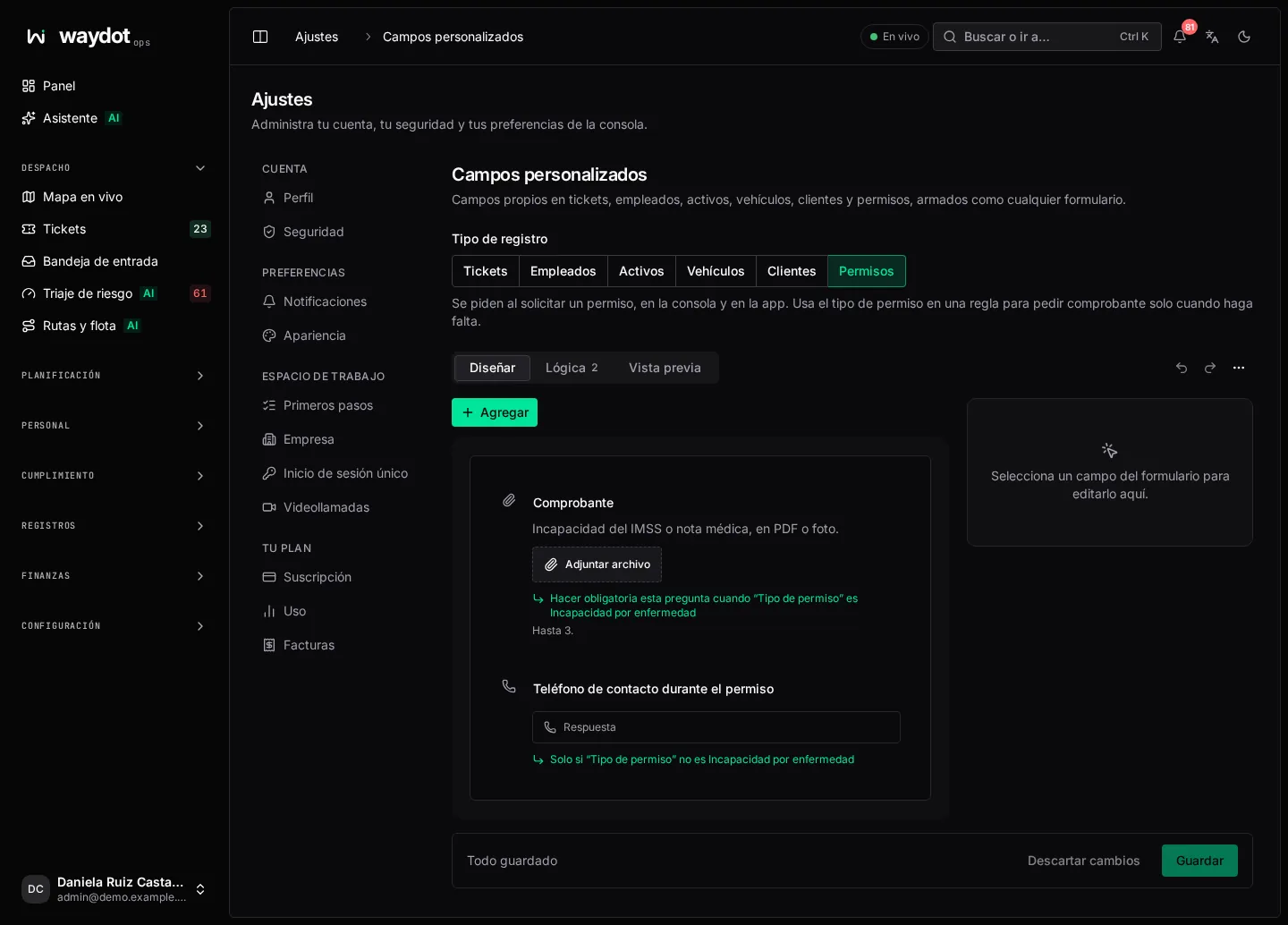
| Leave requests | Asked when requesting leave, in the console, Human resources and the field app. |
On each record, the values appear in a Custom fields panel; an empty field shows Not set.
Building the fields
Fields are designed with the same editor as any form: field types, required, limits, logic and preview. See Building forms.
- Choose the Record type.
- Add fields with Add (or by dragging), configure and order them.
- Optionally use the Logic tab so a field appears or becomes required depending on another. For example, Billing email required only when Is the client billed? is Yes.
- Choose Save. The bottom bar says Unsaved changes or All changes saved; Discard changes returns to what was saved.
If you switch record type with unsaved changes, you're asked whether to discard them.
Asking for proof only for some leave
In Leave requests, conditions can use the Leave type (Vacation, Sick leave, Unpaid leave, Compassionate leave, Other). For example: a File field Medical certificate shown and required only when the leave type is Sick leave.
Per-field settings
Besides what the form editor offers, each custom field has:
| Setting | What it does |
|---|---|
| Key | The internal name the value is stored under (appears in exports, imports and the API). It can be changed; while values move to the new key the field shows Renaming and can't be changed again until it finishes. |
| Filter lists by this field | Builds an index in the background so long lists can be filtered and sorted quickly by this field. Turn it on only for fields you really search by. |
Open the form on a field's page takes you to the editor with that field selected.
Background changes
Renaming a key or building an index happens in the background, record by record. The field's page lists each change with its State (Queued, Running, Done or Stopped), how many Records it has covered and when it Finished. A stopped change can be retried.
Removing a field
Removing a field from the form and saving moves it to Removed fields: it is hidden everywhere, but its values are kept, and its key stays taken.
To delete the values for good, open the removed field and choose Purge values. They are deleted from every record in the background and it can't be undone. The key is then free again.