

English
Raise a ticket
A ticket is one job at one site. The client's contract sets the deadlines from the urgency you choose, and the kind of work decides which agents fit best.
Where it is: New ticket in the ticket queue, on the Dashboard, on the live map, in search (Ctrl K → New ticket) or on a site's record. Who can: people allowed to open new tickets. Assigning while creating also needs assign tickets.
Tickets also arrive by themselves: from intake (email, WhatsApp, other systems), from visit plans, from the field app when an agent reports another problem, and as follow-up visits.
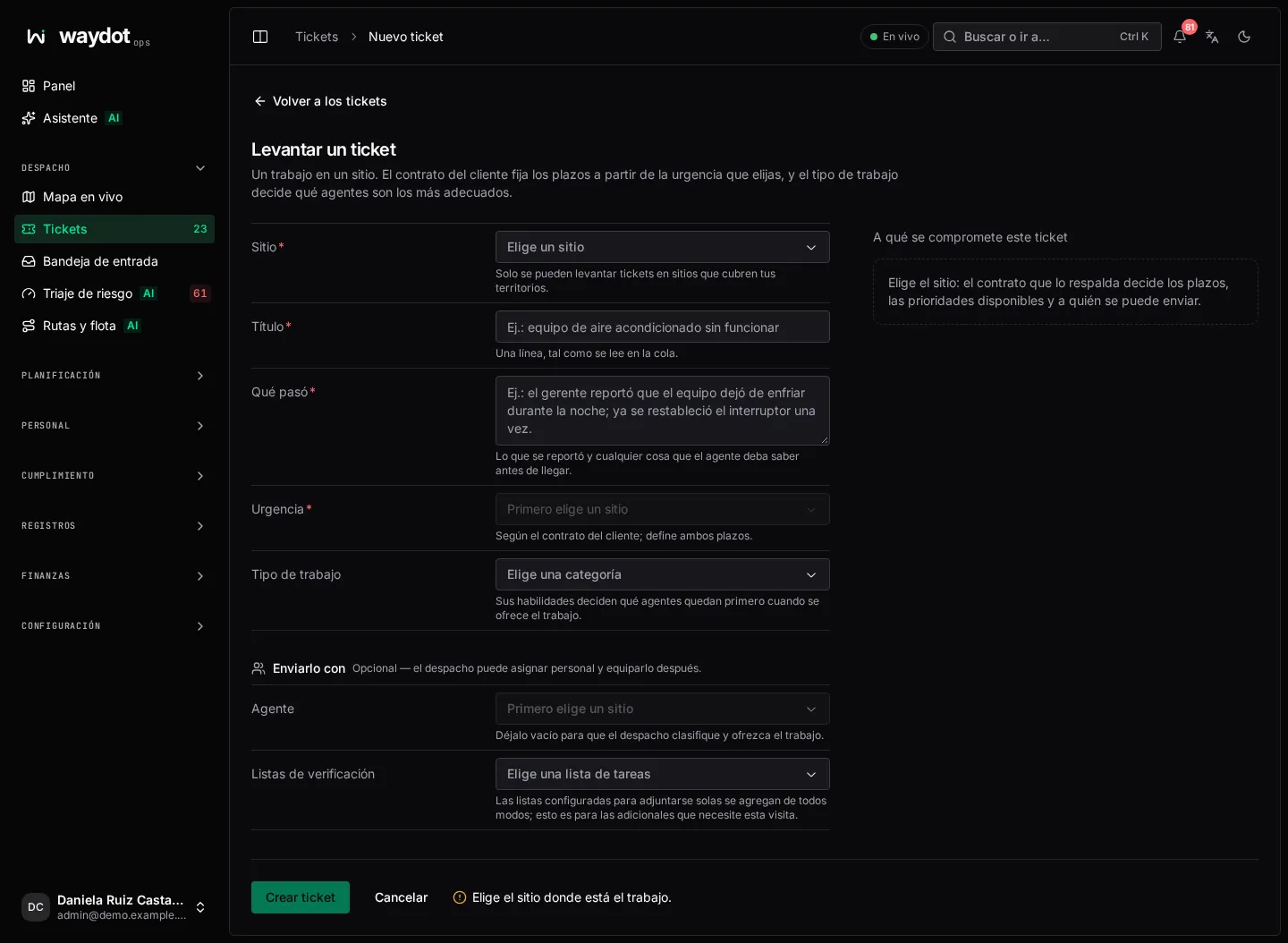
Fields
| Field | Meaning | Rules |
|---|---|---|
| Site * | Where the work is. Determines the client, its contract and the territory. | You can only choose sites your territories cover. |
| Title * | One line, as it will read in the queue. E.g. Air-conditioning unit offline. | |
| What happened * | What was reported and anything the agent should know before arriving. E.g. the store manager reported the unit stopped cooling overnight; the breaker was reset once. | |
| Urgency * | The priority from the client's contract (P0, P1, P2, P3 or its levels). Each option shows its deadlines, for example respond within 4 h. It sets both deadlines: response and resolution. | Enabled once a site is chosen. Choosing the site proposes the contract's middle level: change it to the real urgency before creating the ticket. |
| Kind of work | The work category (HVAC, Point of sale, Network…). Its skills are copied to the ticket and decide which agents come first when it is offered. | Optional. If nobody on the roster has those skills you're warned that nobody will be a full match. |
| Custom fields | Those your workspace defined for tickets (purchase order, billing…). | Per their configuration. |
Send it out with (optional)
| Field | Meaning |
|---|---|
| Agent | Who to assign it to now. Each agent shows whether they are On shift, On a break or Off shift. Leave it empty to let dispatch rank and offer the job (Let dispatch decide). |
| Add someone alongside | Supporting agents who go with the primary, each with their role. They must cover the ticket's site. |
| Checklists | Extra task lists for this visit. Lists set to attach themselves (by category, priority or skills) are added anyway. |
What this ticket commits to
The right panel fills in once you pick the site and urgency: the client and contract behind it, Respond within and Resolve within, the skills it Asks for and who will handle it. Under Create ticket a summary reads like P1 at Store 014 · respond within 2 h · resolve within 8 h · dispatch picks the agent. If something required is missing, it says what (Choose the site where the work is).
Steps
- Choose the Site.
- Type the Title and What happened.
- Choose the Urgency from the client's contract.
- Choose the Kind of work if it applies.
- Fill in any required custom fields.
- If you already know who goes, choose the Agent and, if needed, supporting agents. If not, leave it empty.
- Add extra checklists if the visit needs them.
- Choose Create ticket. Ticket raised — OT-… at … appears and the ticket opens.
What happens next
- With an agent chosen: the ticket is Assigned and reaches the agent's phone.
- Without an agent: the ticket is Open and dispatch ranks it. With smart dispatch on, it is assigned to the best candidate or offered to the best ones; otherwise it waits in the queue for someone to assign it. See How a ticket reaches an agent.
- The SLA clocks start from when it is raised.
- Notification rules tell whoever needs to know.