

English
Live map
The live map shows where the work is and where your people are, and updates itself. From here you assign tickets, respond to SOS alerts and open any record.
Where it is: Dispatch → Live map. The Dashboard also has a Live map shortcut. Who sees it: people allowed to read the live operations board (operations managers and super administrators). Each sees only what is in their territories.
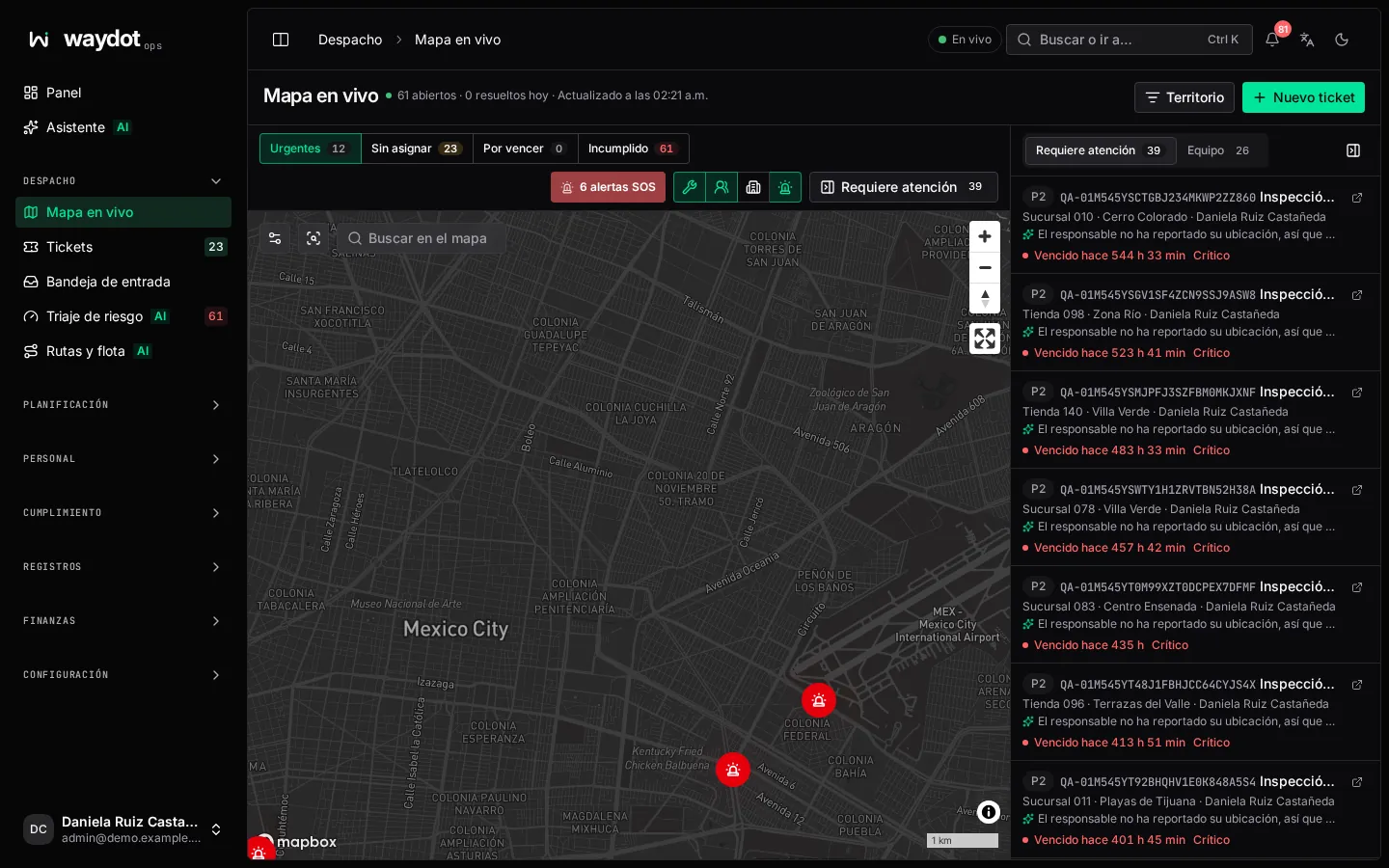
What's on the map
| Marker | What it is |
|---|---|
| Ticket | Open work, at its site. The color is its urgency: red overdue, amber due soon or at risk, green on track. |
| Agent | A field agent's last reported position, with their initials and state. |
| Site | A service location in your scope. |
| SOS | An active emergency alert, with a red halo. |
| Driving leg | The line of an agent on the way to their ticket, with the estimated arrival. |
| Planned route | The visit order the planner suggests for an agent. |
| Clustered | A number in a circle: several nearby markers. Click to zoom in. |
The legend (in the map settings) explains each color.
Above the map
| Control | What it does |
|---|---|
| Urgent · Unassigned · Due soon · Breached | Chips that filter the tickets on the map and side list. Each shows its count. N tickets hidden by the filter warns when the filter leaves something out. |
| N SOS alerts | Shown in red when there are active alerts. Opens the alert list to respond. |
| Layers (icons) | Turn on or off: Urgent tickets (open work due first), Field agents (last positions), Sites (every service location), Agents on the way (driving legs and arrivals), Planned routes and Model overlays such as hotspots. |
| Needs attention | Shows or hides the side panel. |
| Territory | Narrows the map to one territory. |
| New ticket | Opens the ticket form. |
Inside the map:
| Control | What it does |
|---|---|
| Map settings (sliders icon) | Base map: Follow theme, Streets, Dark or Satellite. Names under markers. Heat intensity of the hotspot layer. The legend. |
| Fit everything on the map | Frames every visible marker. |
| Find on map | Finds a ticket, agent or site and centers it. An agent without a position says No GPS reported. |
| + / −, compass, Enter fullscreen | Zoom in, zoom out, reset north and fullscreen. Use Ctrl + wheel to zoom with the mouse. |
The side panel
Two tabs:
- Needs attention: tickets that need a decision, with priority, site, agent, how overdue they are and their risk level. The arrow icon opens the ticket.
- Team: agents with their state (Ready, Break, Off), until when their shift runs and how long ago they reported GPS.
Acting from the map
Click a marker to see its card and actions:
| Marker | Card | Actions |
|---|---|---|
| Ticket | Reference, title, site, priority, deadline and agent. | Assign (if it has no agent), Open ticket details. |
| Agent | Name, state, GPS …ago, Battery N %, On the way to… with estimated arrival and planned stops. | Profile, Follow (the map keeps them centered as they move). |
| Site | Name, client and open tickets there. | Open site. |
| SOS | Who raised it and how long ago. | Respond opens the alert. |
Right-clicking a marker offers Focus on map and opening its record.
Why an agent doesn't show
- They haven't opened the field app or aren't on shift.
- Their phone hasn't reported a location (location permission off, no signal). The Team tab shows No GPS.
- They are outside your territories.
If the map says Map unavailable, the map service isn't configured or isn't answering; the rest of the screen keeps working.