

English
Profile
Your profile is how others see you in WAYDOT and how WAYDOT shows you dates, times and language.
Where it is: your account menu → Your account, or Settings → Profile. Who sees it: everyone sees and edits their own.
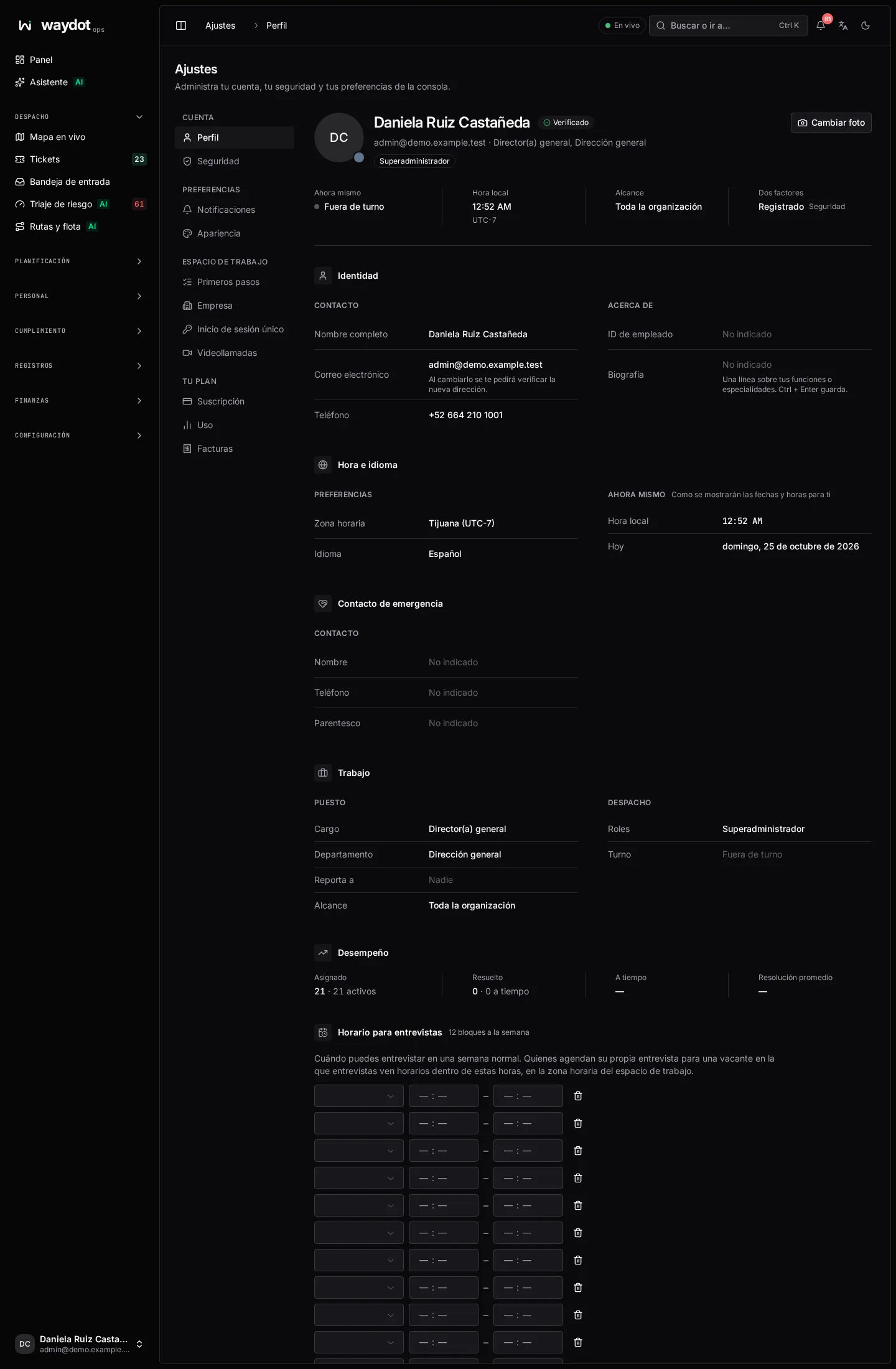
The header
Shows your photo or initials, your name, your email (with Verified or Email not verified), your job title and department, and your roles. Below are four quick facts:
| Fact | Meaning |
|---|---|
| Right now | Your shift state: on shift, on break or off shift. |
| Local time | The time in your time zone. |
| Reach | How far what you can see goes: your territories or The whole organization. |
| Two-factor | Enrolled if two-factor authentication is on, Not set if not. Links to Security. |
Changing your photo
Change photo opens the profile photo editor with three options:
- Upload: a PNG, JPG or WebP photo up to 10 MB. Click or drag it in.
- Monogram: your initials on a tone (Slate, Indigo, Navy, Emerald, Teal, Sky, Violet or Zinc).
- Image URL: a direct link to an image, for example from your company directory.
Save photo applies it; Reset default goes back to initials.
How editing works
Each value is edited in place: click it, change it and confirm with Enter (in long texts, Ctrl + Enter). Esc cancels.
Identity
| Field | Meaning | Notes |
|---|---|---|
| Full name | How you appear on tickets, assignments, the activity log and documents. | Required. |
| Your sign-in username and the address for your notices. | See Changing your email. | |
| Phone | Your contact number. Used for SMS or WhatsApp notices if you turn them on. | Include the country code, for example +52. |
| Employee ID | Your employee number. | Usually filled in by HR. |
| Bio | A line about your duties or specialties. | Optional. |
Changing your email
- Click the email and type the new address.
- In Confirm it’s you, type your password and choose Send link.
- A link goes to the new address. Until you open it you keep signing in with the old address and the profile shows Moving to….
- Open the link from the new address to finish.
While it is pending you can Send the link again or Keep this address to cancel the change.
Time and language
| Field | Meaning |
|---|---|
| Time zone | Every date and time is shown to you in this zone. You can choose Use the device time zone. |
| Language | Spanish or English for the whole interface, emails and notifications you receive. |
On the right, Right now shows how the time and date will look with your choices.
Emergency contact
| Field | Meaning |
|---|---|
| Name | Who to notify in an emergency (for example if you raise an SOS). |
| Phone | Their number. |
| Relationship | Spouse, parent, colleague… |
Work
These details are kept by HR or your administrator; here they are read-only.
| Fact | Meaning |
|---|---|
| Job title | Your position. |
| Department | Your area. |
| Reports to | Your direct manager. |
| Reach | The territories assigned to you, or the whole organization. |
| Roles | Your roles, which decide what you can see and do. |
| Shift | Your current shift, if you have one. |
| Skills and Ticket capacity | For field agents: what they can do and how many tickets they can carry at once. Dispatch uses them to offer jobs. |
Performance
Your numbers for the period: tickets Assigned (and how many active), Resolved (and how many on time), On time percentage and Average resolution.
Interview hours
If you interview candidates, set here when you can do it in a normal week. People booking their own interview for an opening you interview for only see times inside these blocks, in the workspace time zone.
- Choose Add hours.
- Pick the Day and the From and To times.
- Repeat for each block. The bin icon removes one.
A block must end after it starts and can't overlap another on the same day. With no hours, no interviews are offered with you. See Recruitment.