

English
Sign in and recover access
The console opens at your workspace address: yourcompany.app.waydot.mx. The field app uses the same email and password (see Sign in to the field app).
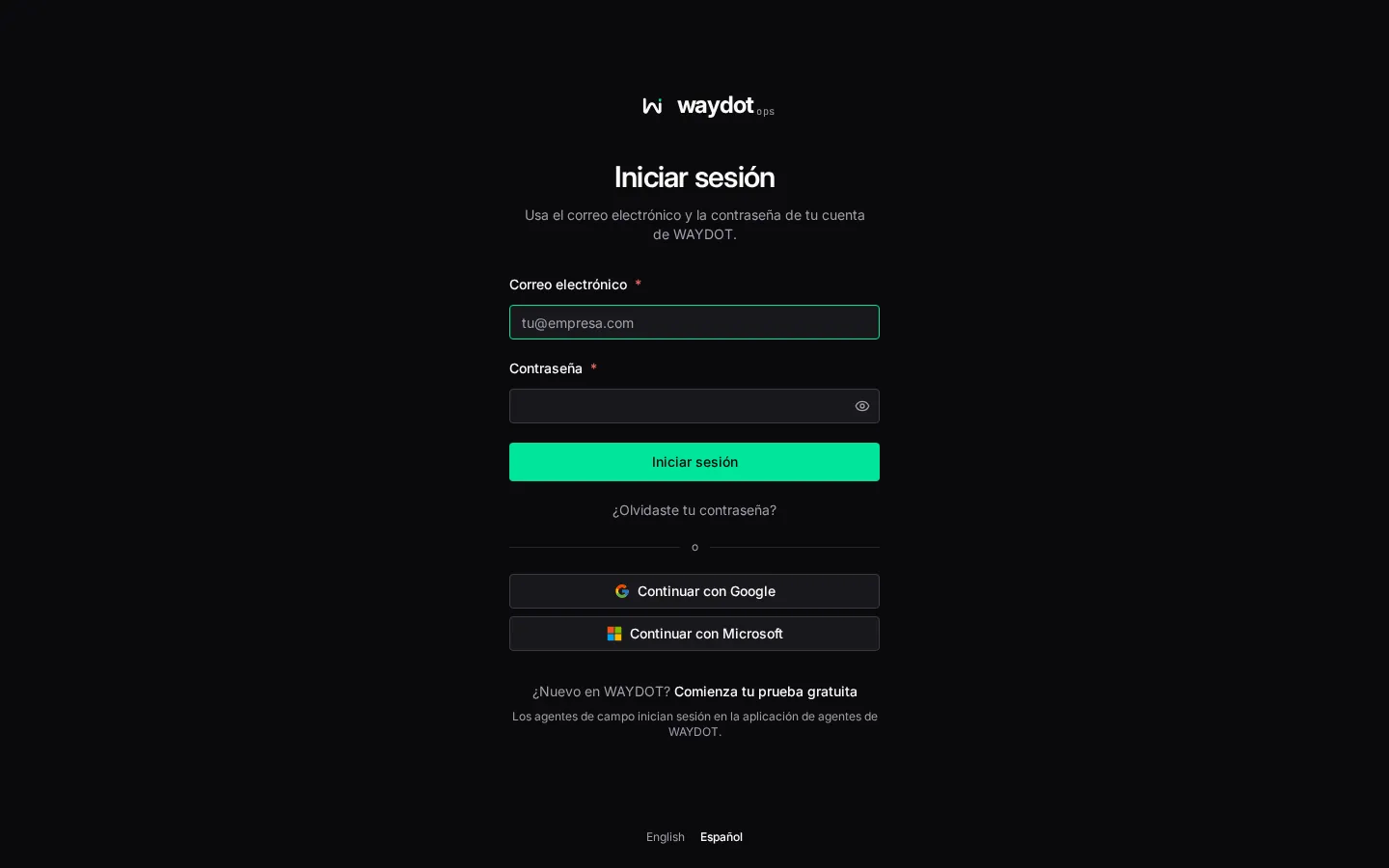
Sign in
- Open your workspace address.
- Type your Email address and Password. The eye icon shows or hides what you type.
- Choose Sign in.
- If your account has two-factor authentication, type the code (see below).
- You land on the Dashboard, or on the screen you were trying to open before signing in.
At the bottom you can switch between English and Español. After you sign in, your profile's language wins.
If you don't know your workspace address
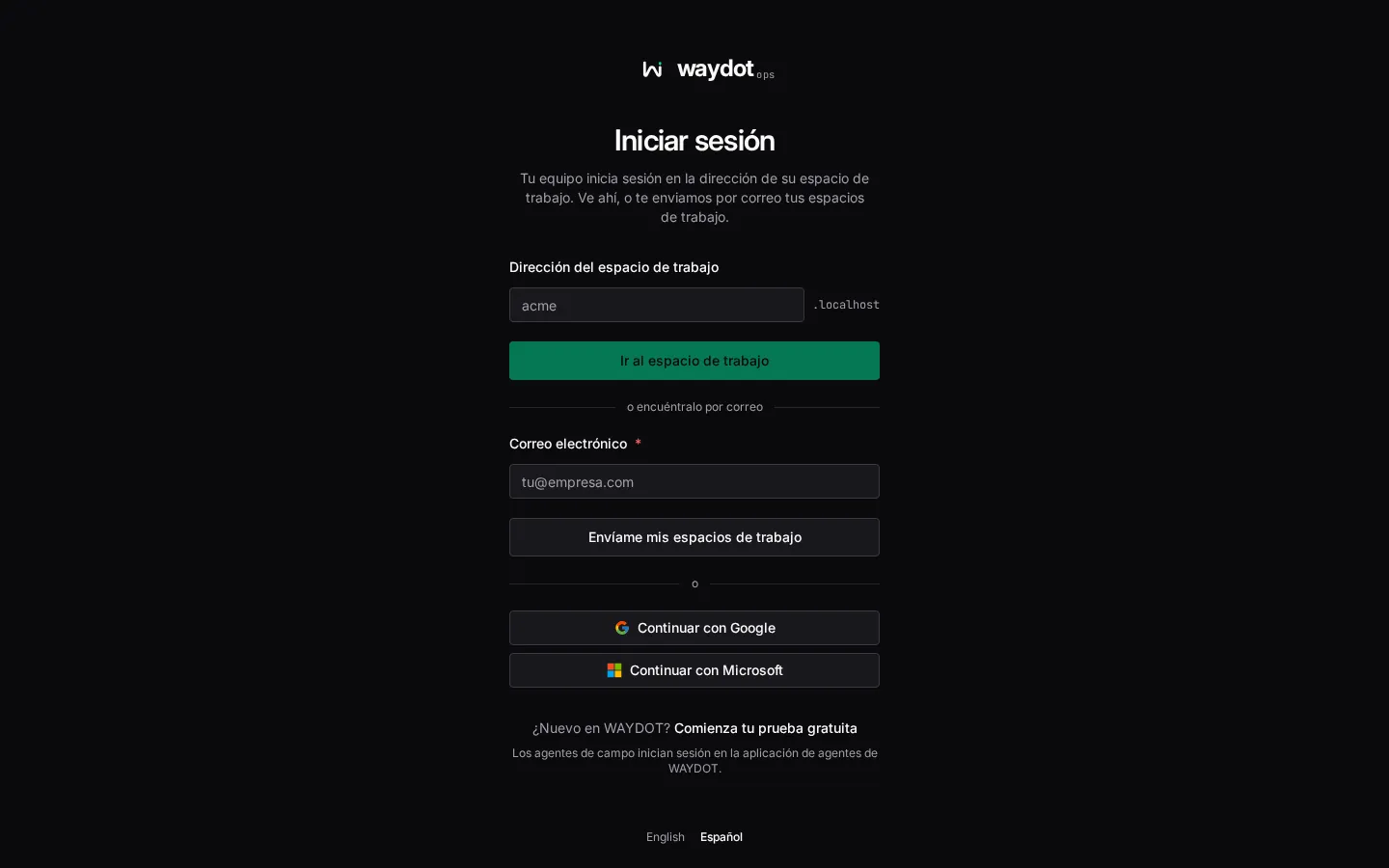
At app.waydot.mx (without your company part) the screen asks for the Workspace address:
- If you know it, type it and choose Go to workspace.
- If not, type your email and choose Email me my workspaces. If that email belongs to any workspace you receive a list of sign-in links for each. For security, the screen answers the same whether or not the account exists.
With Google or Microsoft
Continue with Google and Continue with Microsoft sign you in with that account instead of a password.
- If you already have a WAYDOT account with the same email, the first time you are asked to sign in once with your password to connect the two accounts. After that the button is enough.
- At
app.waydot.mx, these buttons find the workspaces your account is connected to and let you pick one.
With your company's single sign-on (SSO)
If your company configured its identity provider (Okta, Microsoft Entra ID, Google Workspace, etc.), the screen detects it from your email and shows Continue with your company’s single sign-on.
- If your company requires single sign-on, the password field disappears and the screen says Your organization signs in through its identity provider.
- Administrator emergency access: a link for the administrators your company designated to sign in with a password and two-factor authentication if the identity provider fails. Nobody else can use it.
- If the provider doesn't complete the sign-in, you come back to this screen with Single sign-on failed.
To set it up see Single sign-on.
Accept an invitation
When an administrator adds you without a password, you receive an invitation email.
- Open the link in the email.
- In Create your password, type the Password (at least 8 characters) and Confirm it.
- Choose Create password. Your email is confirmed at that moment.
- If you are a field agent, the screen asks you to open the WAYDOT app on your phone and sign in with your email. The invitation email has the download link.
Two-factor authentication
Two-factor authentication asks, besides the password, for a 6-digit code from an authenticator app (Google Authenticator, Microsoft Authenticator, 1Password, Authy or another). A leaked password is then not enough to get in.
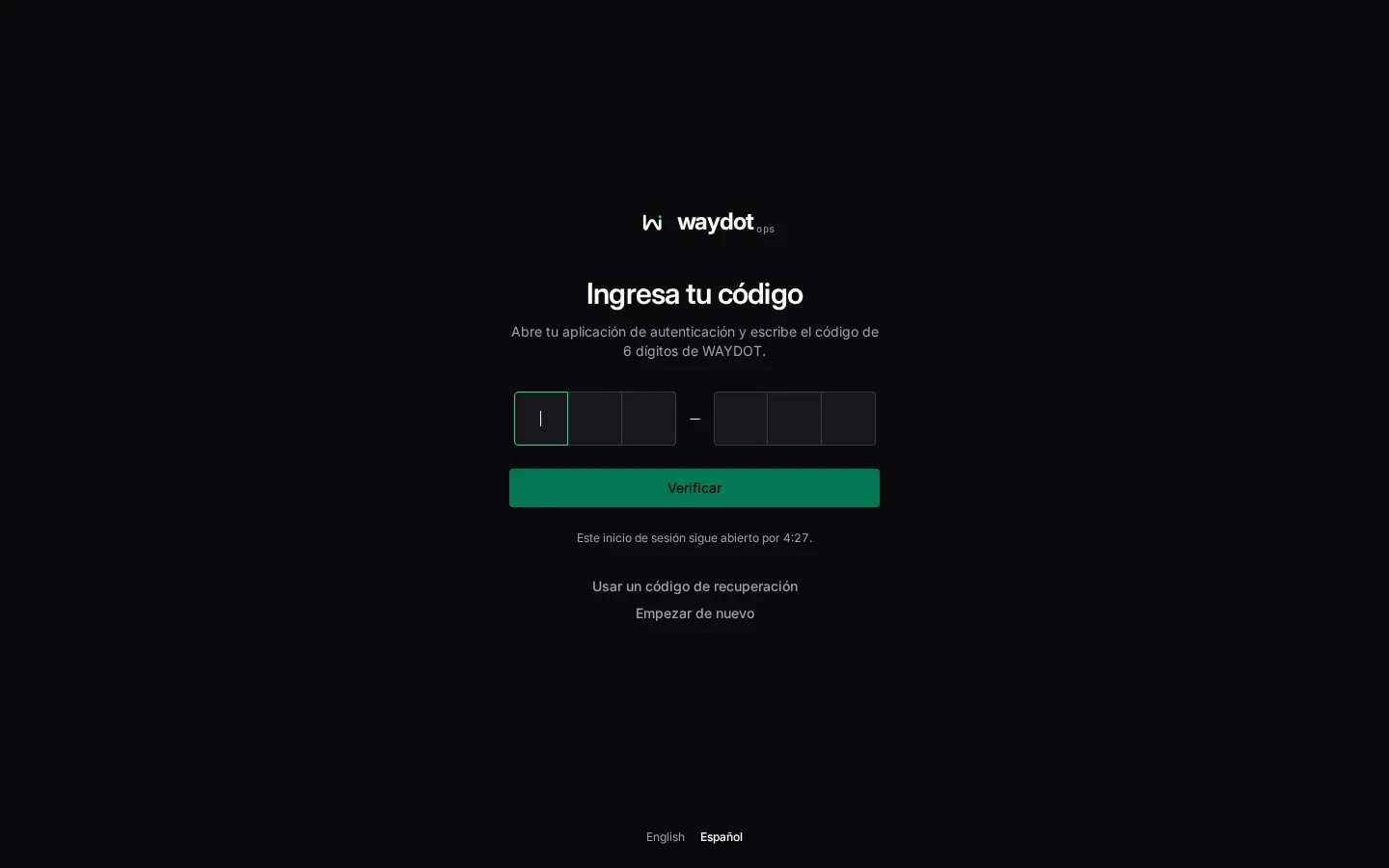
- After the password, Enter your code appears.
- Open your authenticator app and type the 6-digit WAYDOT code. It is sent as soon as the digits are complete, or with Verify.
- If you don't have your phone, choose Use a recovery code instead and type one of the codes you saved when you turned it on (format
xxxxxxxx-xxxxxxxx). Each code works once.
Details:
- The code step is timed (This sign-in stays open for 4:30.). When it runs out, This sign-in timed out appears: choose Start over.
- Attempts are limited. After several wrong codes you have to sign in again.
- Start over cancels this sign-in and returns to the email and password screen.
Who must turn it on
By default, people with the Super administrator or HR administrator role must turn on two-factor authentication within 7 days of their account being created. An administrator can change which roles require it and the grace period in Platform settings.
While it is pending, the console shows Two-factor authentication required at the top with the deadline and Set it up. You can dismiss the notice, but after the date the console stays closed until you turn it on. If your company requires single sign-on, the identity provider handles the second factor and WAYDOT doesn't ask for it.
To turn it on see Account security.
Forgot your password
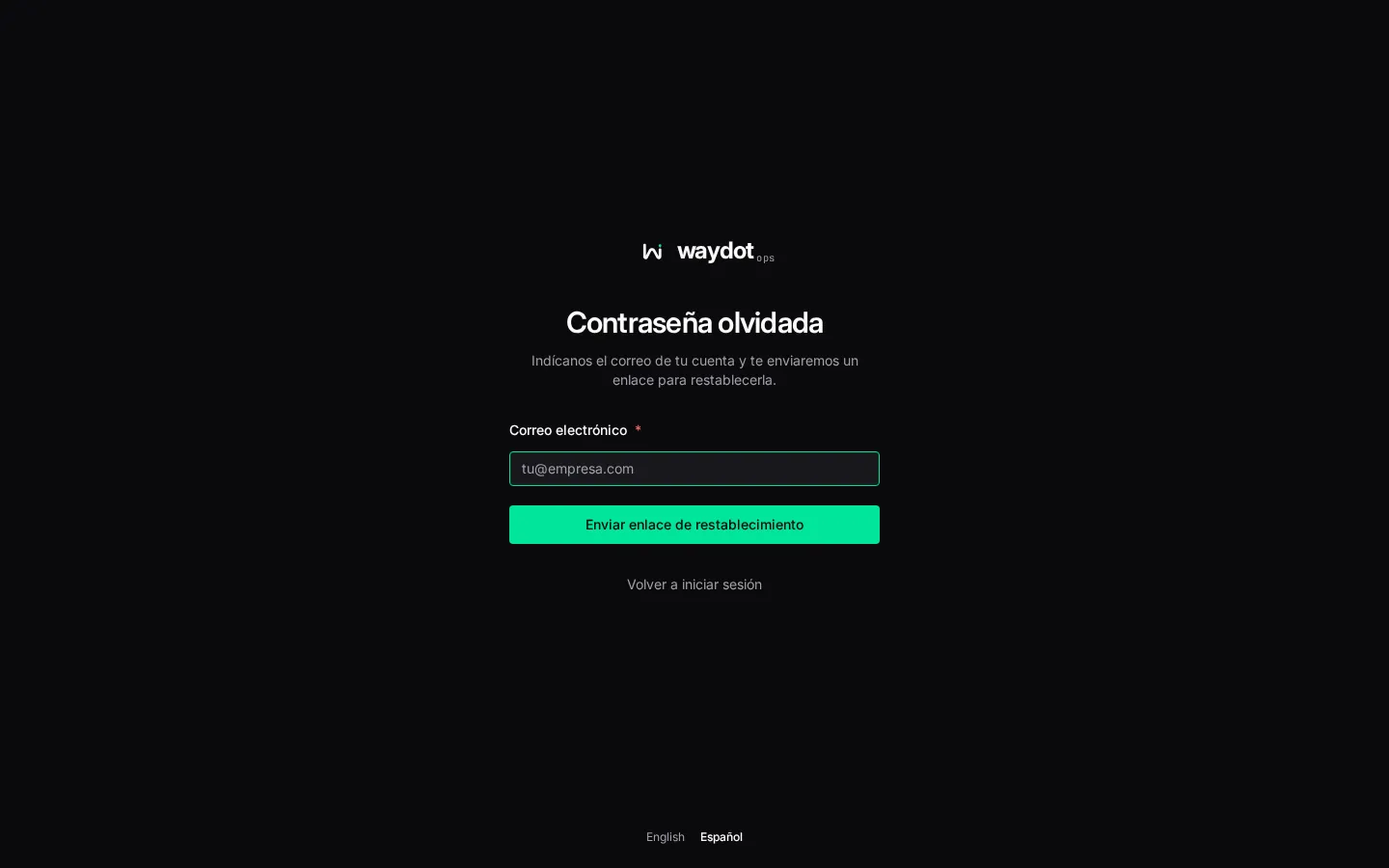
- On the sign-in screen choose Forgot your password?
- Type your account email and choose Email reset link.
- Check your inbox appears. If the email belongs to an account, the link arrives within minutes and works for 60 minutes. If it doesn't arrive, check spam or use Send another link.
- Open the link. In Reset password type the New password (at least 8 characters) and Confirm new password.
- Choose Reset password. You return to sign-in with Your password was changed. Sign in with the new one.
If the link opens incomplete (for example because your email program cut it), the screen says Link is incomplete: ask for a new one and open it straight from the email.
Lost your phone and your recovery codes
Ask an administrator to use Reset two-factor on your record in Records → People. When you sign in again you can turn it on with another phone. See People.
Signing out and idle sessions
- To leave, open the menu with your name in the bottom-left corner and choose Sign out.
- After almost two hours without activity, Are you still there? appears with a countdown. Choose Stay signed in to continue or Sign out now. If time runs out the session closes and anything unsaved is lost. When you return you will see You were signed out after two hours without activity.
- In Account security you can see the devices with an open session and close them.
Messages on the sign-in screen
| Message | Meaning |
|---|---|
| Your email address is verified. Sign in to continue. | You opened the verification link without a session. |
| That verification link no longer works. | The link expired. Sign in and request a new one. |
| Your password was changed. Sign in with the new one. | You just reset it. |
| This login has expired. Please sign in again. | The session expired from inactivity or was closed from another device. |
| Could not sign in | The email or password don't match, the account is deactivated or too many attempts were made. |
| Field agents work in the WAYDOT agent app… | Your account only holds the field agent role. Use the field app; the screen shows a QR code to download it. |