

English
Assign a ticket
Assigning sends the ticket to an agent: it reaches their phone and they become its owner. The assignment and its reason are kept in the audit log.
Who can: people allowed to assign, offer and staff tickets (operations managers and super administrators).
Where: Assign on the ticket, on the Dashboard (Needs a decision), on the live map, in risk triage, or Reassign in the ⋯ menu of an already-assigned ticket.
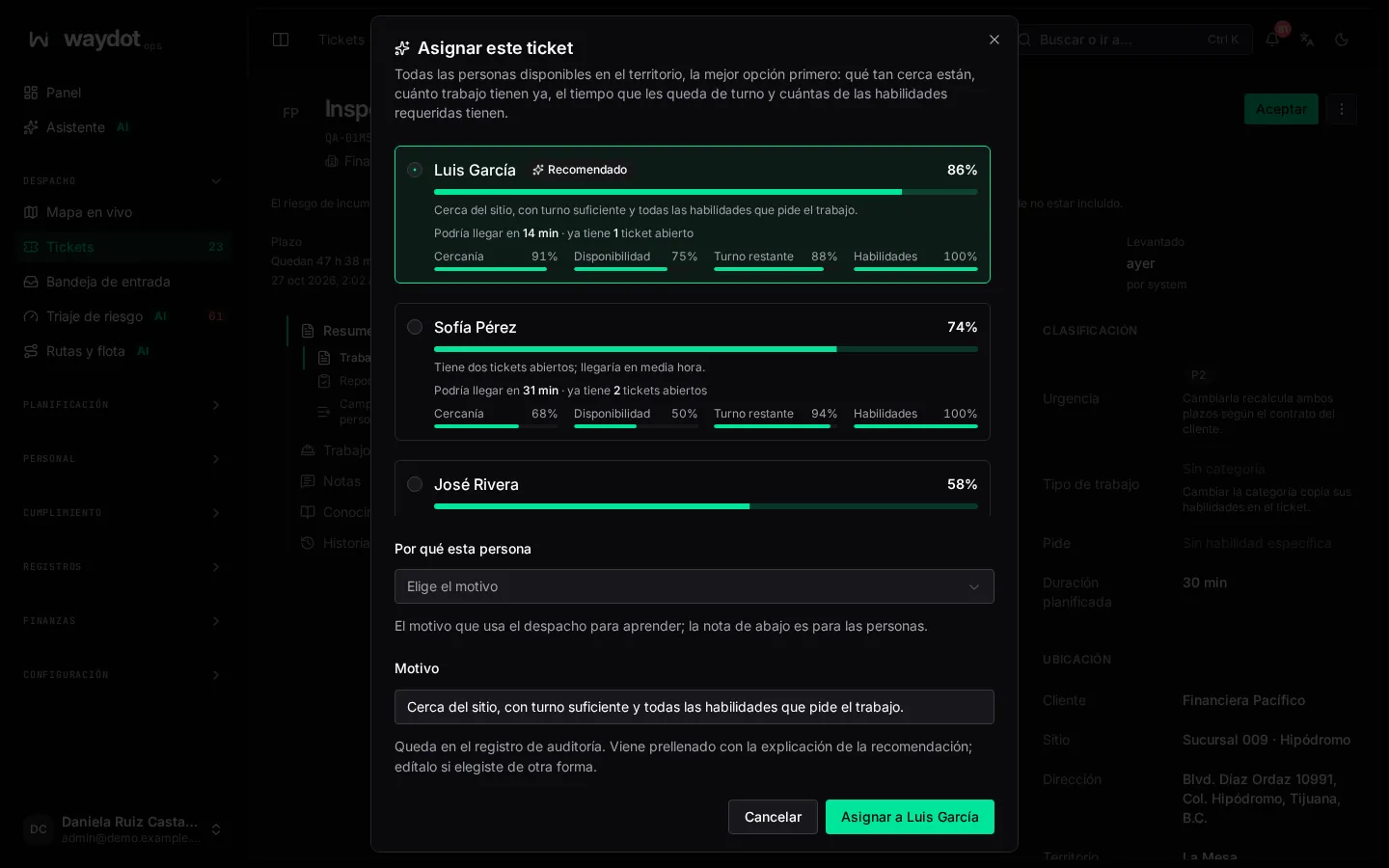
Candidates
The dialog lists everyone available in the territory, the best fit first. Each candidate shows:
- a score from 0 to 100 and, for the first, Recommended or Recommended match (87); Strong match for high scores;
- Could arrive in 25 min · already holds 2 open tickets;
- four bars with the score's factors:
| Factor | What it measures |
|---|---|
| Proximity | How close their last known location is, converted into travel time. Beyond the longest useful travel time it scores zero. |
| Availability | How much work they already hold against their ticket capacity. |
| Shift left | How much of their shift remains. |
| Skills | How many of the skills the job asks for they have. |
How much each factor weighs is set in Platform settings → Dispatch and, with Intelligence, can be tuned per regime from the Model registry.
Notices you may see:
- · last known location is uncertain: the agent hasn't reported a recent location; their proximity is less reliable. Agents whose location is too old aren't listed.
- At or above the 90 auto-assign threshold: with that score dispatch would have assigned them by itself.
- Find a person by name filters the list. Unavailable people aren't listed.
If nobody in the territory is available
No agent in this territory is available appears. If people are available elsewhere in the client, they are listed below, Outside this ticket's territory — override required. Choosing someone from outside asks for an Override reason (e.g. Only technician holding the replacement part), kept in the audit log.
Steps
- Open Assign (or Reassign).
- Review the list. If there is a dispatch recommendation, the top shows who, when they would arrive, how much margin it leaves against the deadline, who else is possible (Also possible) and Why others were left out.
- Choose the person.
- Optionally, and especially if you didn't choose the recommended one, state Why this person, the reason dispatch learns from:
- The client already has the part on site
- Another agent is carrying the part
- The part is coming from our warehouse
- The client is procuring the part
- The client has the parts ready to collect
- The client asked for this technician
- A road closure or incident is in the way
- Something about the site requires this person
- The ranked agent lacks a working tool
- Check the Reason: text for people, kept in the audit log. It is prefilled with the recommendation's explanation; edit it if you chose differently. It is required only when you choose someone outside the territory.
- Choose Assign to …. Ticket assigned. appears.
The ticket moves to Assigned and the agent is notified. If it was assigned to someone else, it is taken from them.
Assigning several at once
In the ticket queue, tick several and choose Assign…:
| Field | What it is |
|---|---|
| Choose an agent | The same person for all. |
| Reason | Recorded in each ticket's history (e.g. Morning dispatch, north sector). |
Choose Assign N. Tickets that can't be assigned stay as they are and are listed with the reason.
Supporting agents
For multi-person jobs, add supporting agents from Ticket team → Staff this ticket or when raising the ticket. See The ticket → Team.
Return to queue
To take the ticket from the agent without assigning it to someone else, use Return to queue… in the ⋯ menu. The ticket goes back to Unassigned and dispatch can offer it again.