

English
Your notifications
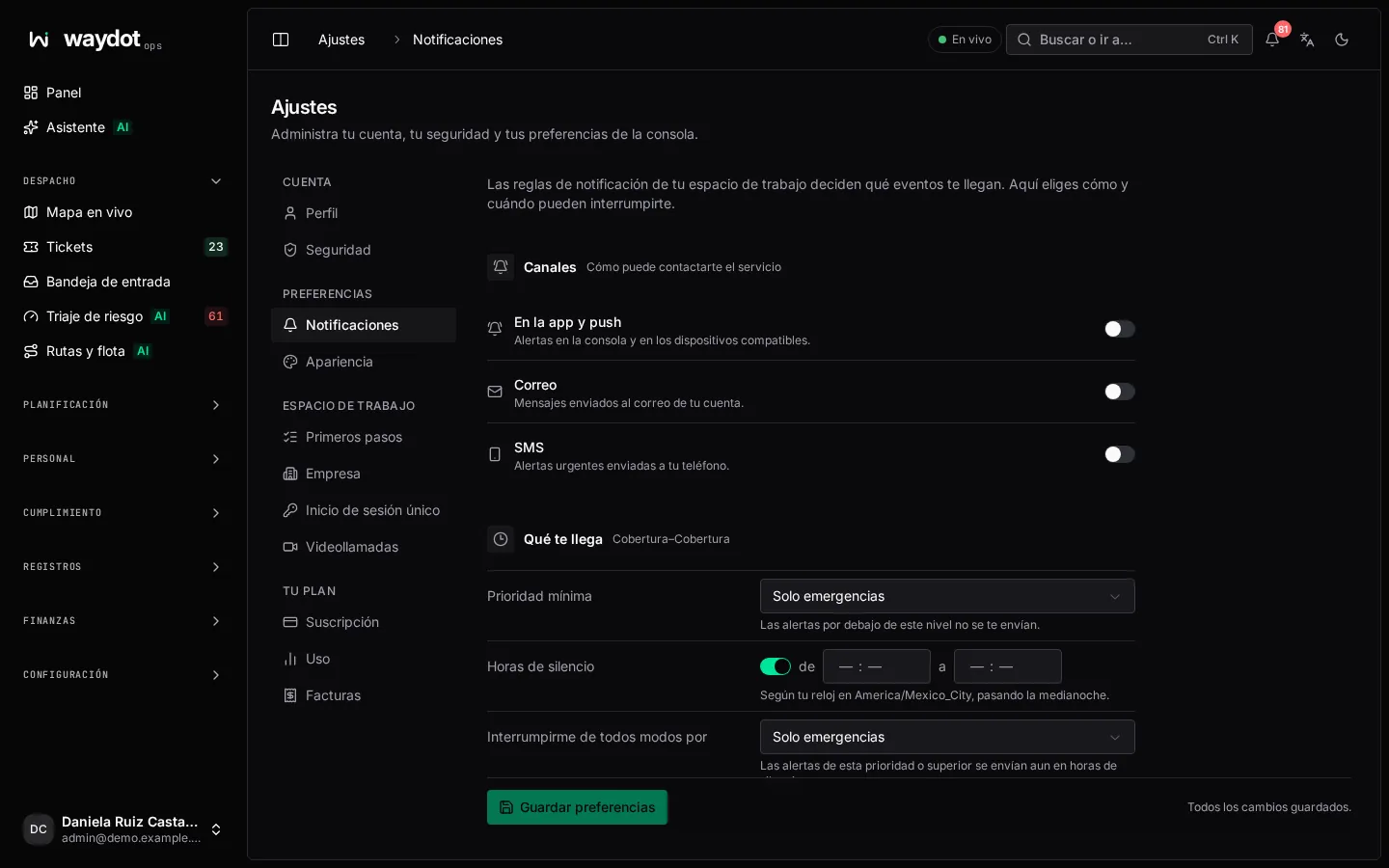
Your workspace's notification rules decide which events reach you (a ticket assigned, an SOS, an SLA at risk…). Here you choose how and when they may interrupt you.
Where it is: Settings → Notifications. Who sees it: everyone, for themselves.
Channels
How the service may reach you. Turn each on or off:
| Channel | What it is |
|---|---|
| In-app and push | Alerts in the console bell, in the field app and as browser or phone notifications. |
| Messages to your account email. | |
| SMS | Urgent alerts to your phone. Needs a phone number in your profile. |
If a channel is off, nothing reaches you through it even when a rule asks for it.
What reaches you
| Setting | What it does | Options |
|---|---|---|
| Minimum priority | Alerts below this level aren't sent to you. | Routine and above (everything), Important and emergency, Emergency only. |
| Quiet hours | Hours when you don't want to be interrupted. Turn it on and set the start and end. It can cross midnight (for example 22:00 to 07:00). It follows your time zone's clock. | Off: Alerts can arrive at any time. |
| Still interrupt me for | Alerts at this priority or above are sent even during quiet hours. | The same three options. Usually Emergency only, so an SOS always reaches you. |
Each notification rule gives its message a priority: Routine, Important or Emergency.
Saving
Nothing applies until you choose Save preferences; meanwhile the screen says Unsaved changes. Discard changes returns to what was saved. If you turn on quiet hours without a start and end, you're asked to complete them or turn them off.
Browser notifications
For alerts to sound and show while you're on another tab, allow browser notifications. The console bell offers Turn on while they aren't allowed. If you blocked them before, allow them again from the padlock in the browser's address bar.