

English
Clients
A client is a company you do field work for. Its contract decides the available priorities and each ticket's deadlines; its territories organize its sites; and its people can request service and receive reports.
Where it is: Records → Clients. Who sees it: people allowed to read clients and their contracts; creating and changing needs write clients, contracts and SLA matrices. Plan: Basic allows up to 10 clients, Pro up to 50 and Enterprise unlimited.
The list
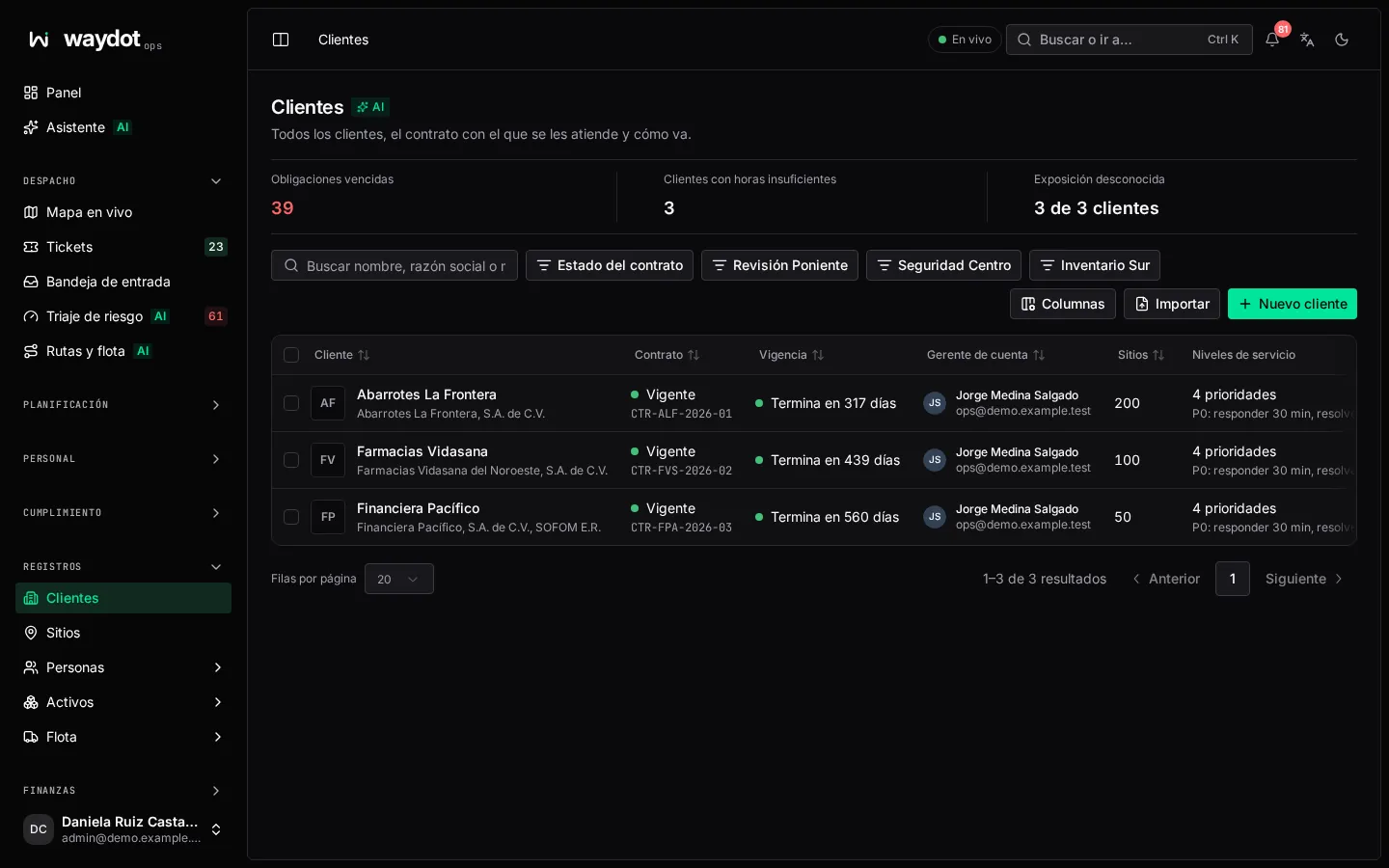
Every client, the contract they're served under and how it's going: name, contract number, term, number of sites, priorities (P0: respond 30 min, resolve 4 h) and overdue tickets (3 of 40 overdue). At the top, Contract health (AI) flags Clients short of hours and those with Exposure unknown (no penalty rule).
Search by name, legal name or contract number; filter by Contract status. Export CSV and Import from CSV (see Import records). New client creates one.
Creating a client
| Field | What it is |
|---|---|
| Display name | How it appears in the console and reports. Required. |
| Legal name | The legal name, for example Cadena Comercial OXXO, S.A. de C.V. |
| Contract number | For example MSA-2026-014. |
| Logo | PNG, JPEG or WebP up to 2 MB. Optional; it appears on client reports. |
It starts with the standard service levels P0 to P3 (Emergency, High, Normal, Low), to adjust on its page. Then fill in the term, contacts, coverage and commercial terms there.
The client's page
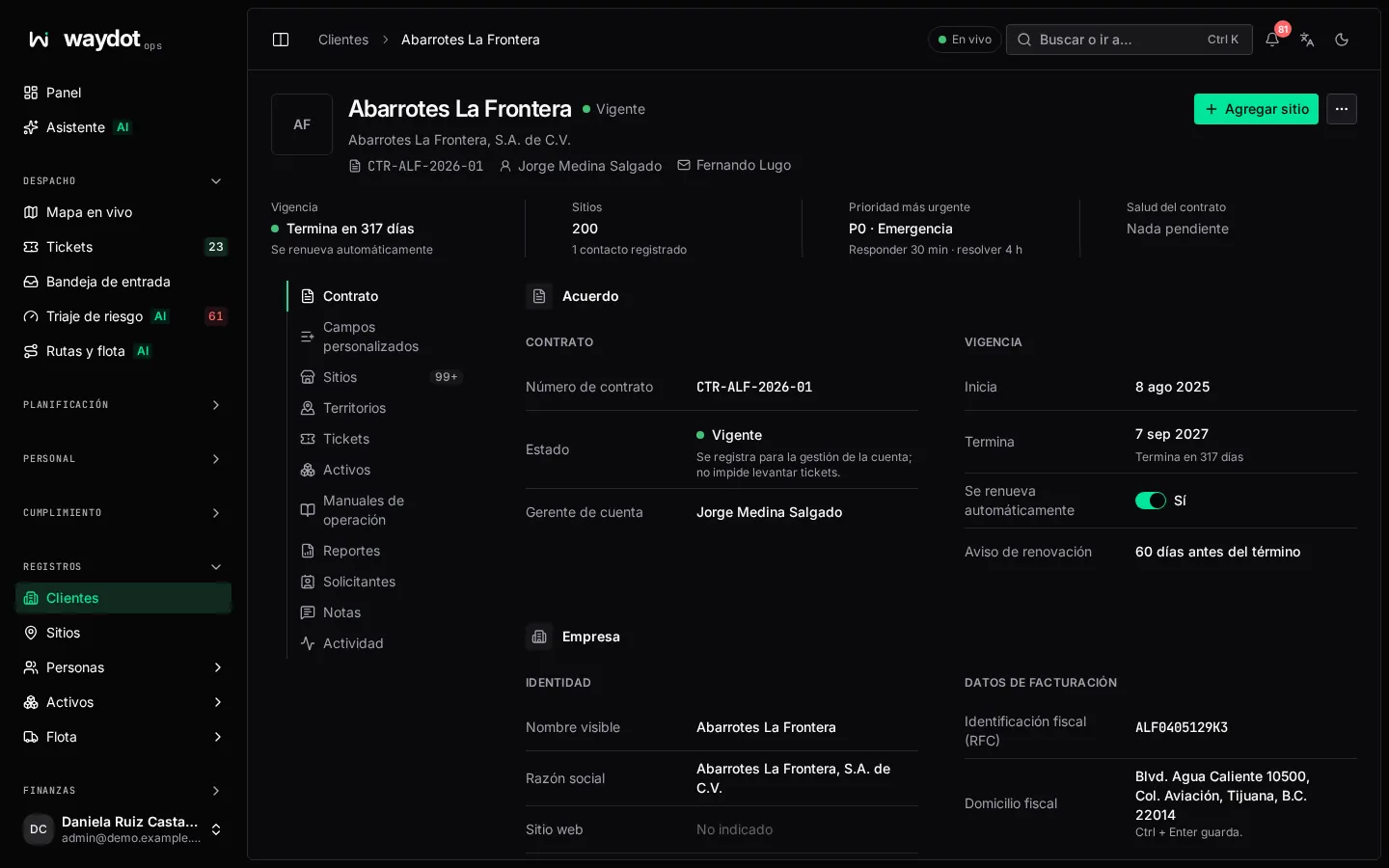
Header: name, term state (In force), contract number, account manager and main contact. Quick facts: Term (Ends in 317 days · Renews automatically), Sites, Most urgent priority (P0 · Emergency, respond 30 min · resolve 4 h) and Contract health.
Actions: Add site and, in ⋯, Copy client ID, Copy contract number and Delete client.
Sections: Contract, Custom fields, Sites, Territories, Tickets, Assets, Runbooks, Reports, Requesters, Notes and Activity. Each field is edited in place.
Agreement
| Field | What it is |
|---|---|
| Contract number | The agreement's identifier. |
| Status | In force, ending or ended. Recorded for account management; it doesn't stop tickets being raised. |
| Account manager | Who in your company owns the relationship. |
| Starts / Ends | The term (Open-ended if open). |
| Renews automatically | Yes or no. |
| Renewal notice | How many days before the end notice must be given not to renew. The page warns when the notice is due. |
Company
Display name, Legal name, Website, Logo, Tax ID (RFC) and Billing address.
Contacts
Who to call about the work, who gets invoices, who to escalate to. Add contact: name, Job title (Facilities lead), email and phone. A client keeps up to a maximum number of contacts.
Service levels
The contract's priority matrix. Edit service levels:
| Column | What it is | Rules |
|---|---|---|
| Order | Most urgent first. It's the ranking dispatch uses. Use the arrows to change it. | |
| Code | P0, P1… or the client's own. | 1 to 20 letters, digits, hyphens or underscores; no repeats. |
| Name | Emergency, High… | Required. |
| What counts as… | The level's criteria: the description AI triage and people decide priority with. By default: The site can't operate or there's a risk to people or property (Emergency), The site operates but customers or staff are directly affected (High), Something fails or half works but there's an alternative (Normal), Cosmetic issues, minor adjustments, quotes and schedulable work (Low). | |
| First response | The deadline to arrive on site, in minutes, hours or days. | At least 1 minute; no longer than resolution. |
| Resolution | The deadline to resolve. | Between 5 minutes and 30 days. |
| Escalate after | How long after the deadline escalation fires (At the deadline or 30 min past the deadline). | Not negative. |
Deadlines are fixed on each ticket when it is raised, so a change here only applies to new tickets. Add priority adds a level.
Contract health (AI): open and overdue obligations, the next due, the Penalty exposure (at the 95th percentile) and, if capacity hours are short, the suggestion to Move N h from one territory to another.
Coverage and site access
| Field | What it is |
|---|---|
| Time zone | The service hours are read in it. |
| Service hours | Days and opening hours per day, or Around the clock, every day. When service is owed under the contract. |
| Observes public holidays | Yes or no. |
| Access Requirements | Badges, PPE, inductions, who to sign in with. Shown on every site of this client and to the agent in the app. |
Deadlines run on calendar time
Service hours inform your team, but SLA deadlines keep running on calendar time per the service levels; they don't pause outside coverage.
Commercial terms
| Field | What it is |
|---|---|
| Currency | The contract's. |
| Monthly fee | What the client pays per month. |
| Payment terms | Net 30 days… |
| Purchase order required | Billable work needs the client's PO number before invoicing. |
| SLA penalty terms | For example 2% of the monthly fee for each breached P0 ticket, capped at 10%. It feeds penalty exposure. |
Scope of work
Covered services and exclusions, as free text.
Territories
The client's geographic hierarchy: regions, states, cities, zones, down to the places where its sites are. It decides which people see and receive each site's work and how far dispatch widens when nobody in the zone is available.
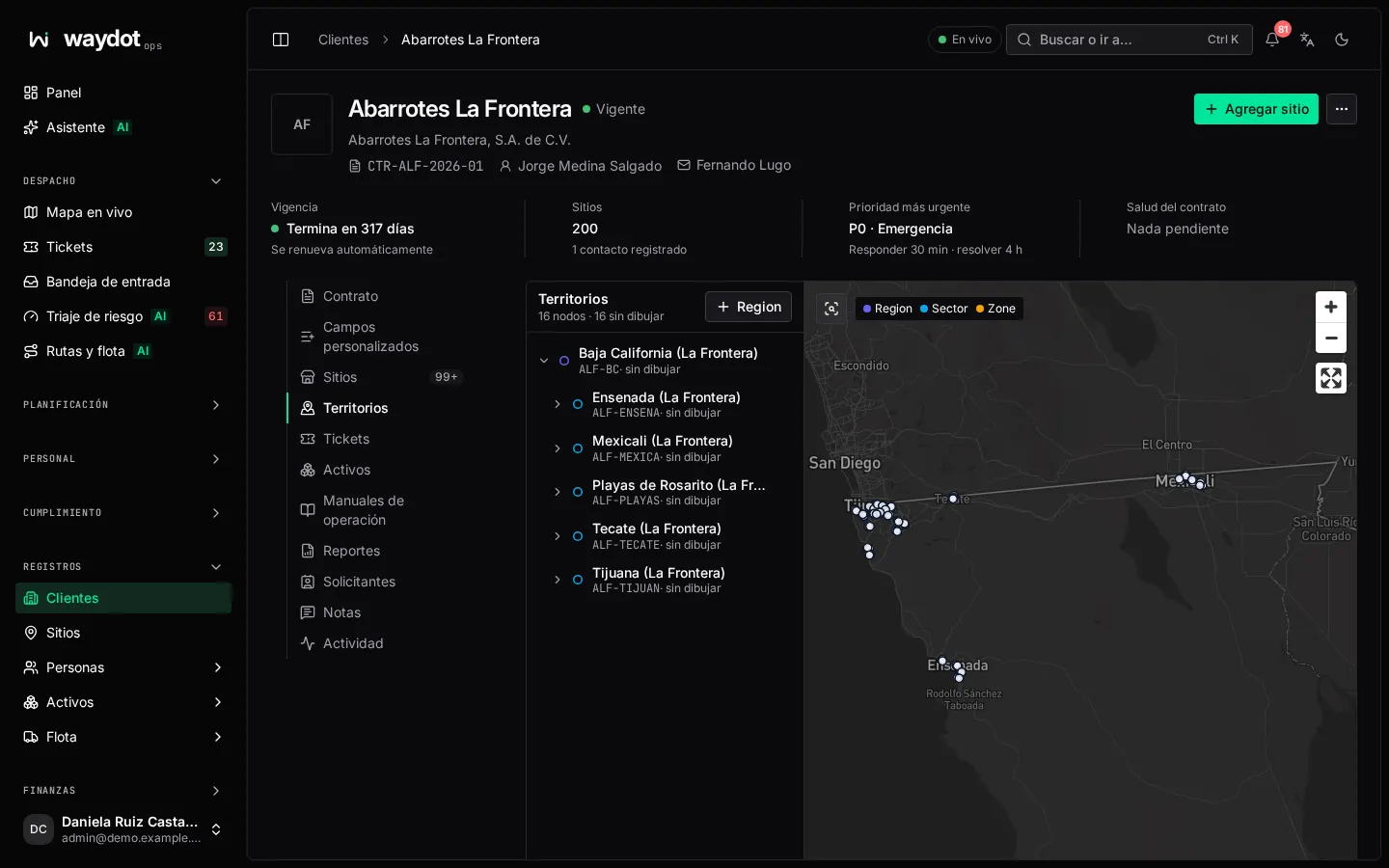
- Start at the top (a region, a state) with Add the first area.
- For each node set:
- Name (Zona Río) and Code (BC-TIJ-RIO), unique within the client;
- Tier: what the client calls this level (Region, Plaza, Zone);
- whether it is an Area (drawn as a boundary; sites inside belong to it) or a Place (a point, like a store).
- Draw boundary: click the map to add vertices; double-click or Enter to finish; Esc starts again. Reshape lets you drag vertices; Delete removes one.
- Where tickets here are offered: the neighboring areas dispatch widens to, step by step. Widening only happens when nobody from the previous step is available.
- Save changes.
If two areas overlap, a site in the shared zone belongs to both. To delete a node, first remove what's beneath it and unlink its sites.
Sites, Tickets and Assets
Lists of this client's sites, tickets and installed equipment, with their filters. Add site creates one already linked to the client.
Runbooks
The client-specific guides and procedures. See Knowledge base.
Reports
Service reports for the client, with data from the stores you're responsible for. Choose the Report and Period (Previous month, Last quarter, Previous 30 days or From/To):
| Report | What it includes |
|---|---|
| SLA performance and responsiveness | SLA compliance, on-time response and resolution, breached deadlines with attribution, by priority, territory and category. |
| First-time fix and site presence | First-time fix, visits per job, GPS-verified arrivals, mean time on site, revisit reasons. |
| Asset lifecycle and renewal | Chronic units, warranty, replacement horizon and replacement candidates, by model. |
| Preventive maintenance delivery | On-time visits, site coverage, completed checklists and missed visits, by plan. |
| Service quality and evidence | Defects by severity and category, evidence integrity. |
| Site safety and hazards | Pre-work safety checks, incident-free days, reports by kind, hazards by severity and open. |
| Service demand and out-of-scope work | When demand arrives (tickets by day and hour), out-of-scope work and declared extra work. |
Long periods can take a minute to build. See What your clients see for an example PDF.
Scheduled sends
Add schedule sends a report on a cadence:
| Field | What it is |
|---|---|
| Report | Which one. |
| Cadence | Weekly, Monthly or Quarterly. |
| Delivery | PDF link, Spreadsheet link or Console link. |
| Recipients | Emails, separated by commas or line breaks. |
Each schedule shows Next: … and whether it is Sending or Paused. Remove schedule stops it; reports already sent don't change. Pro allows 10 scheduled reports; Enterprise, unlimited.
Requesters
The client's people who can request service by WhatsApp or email. See Requesters.
Deleting a client
⋯ → Delete client. A client that still has sites can't be deleted: remove its sites first. The deletion is kept in the audit log.