

English
How WAYDOT is organized
WAYDOT is a platform for companies that do field work for their clients: maintenance, installations, audits or technical service. It takes the client's request, turns it into a ticket, sends it to the right technician, guides the work on site and keeps the evidence that proves it was done. Around that it manages people, shifts, attendance, vehicles, inventory, safety, quality, expenses and, if you subscribe to it, payroll.
This page explains the pieces you will meet and the words that recur throughout this guide.
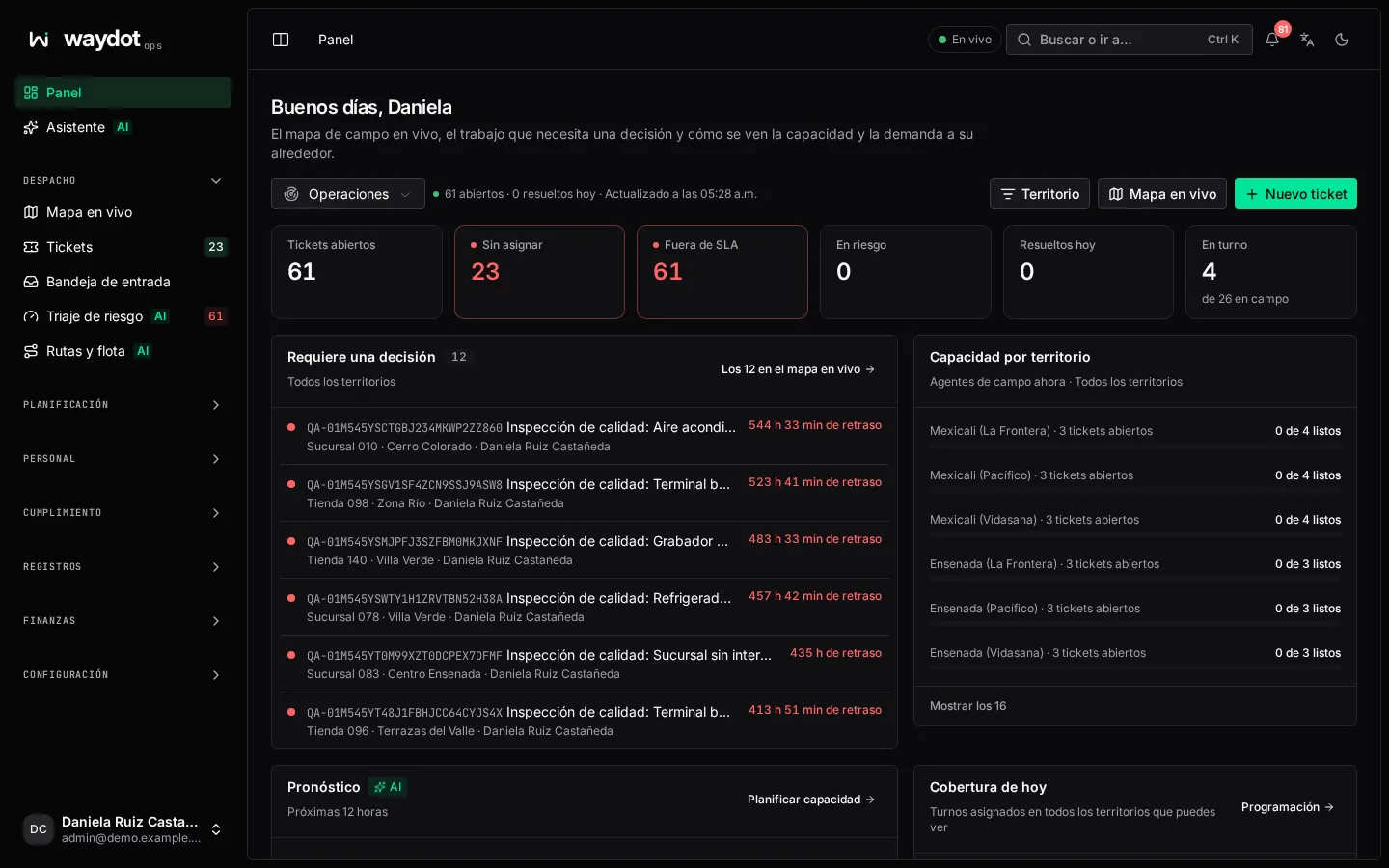
The apps
| App | Who uses it | Where it opens | What it is for |
|---|---|---|---|
| Console | Dispatchers, supervisors, managers, compliance, finance and administrators | In the browser, at your workspace address: yourcompany.app.waydot.mx | Raising and dispatching tickets, the live map, shift planning, attendance, clients, sites, assets, fleet, safety, quality, finance and workspace configuration. |
| Human resources | HR and payroll staff | In the browser, at yourcompany.hr.waydot.mx. It opens from the console at Workforce → Human resources without signing in again | Employee files, leave and vacations, hiring, engagement, compensation, payroll, IMSS and payroll CFDI. Only present when your plan includes the Human resources module. |
| Field app | Field agents (technicians, auditors, guards, drivers) | On an Android phone. Download it from waydot.mx/download | Receiving job offers, navigating to the site, recording arrival, following task lists, capturing evidence, signatures, clocking in and out, reporting hazards and SOS, logging fuel and expenses. Works without signal. |
| Client and candidate pages | Your clients and job applicants | Links WAYDOT sends by email or WhatsApp | Signing a document, reviewing a proposal, receiving service reports, applying for a job or booking an interview. No account needed. |
One account
The same person uses the same email and password in the console, Human resources and the field app. What they can see in each depends on their roles.
Field agents don't use the console
If an account only holds the field agent role, the console shows a notice with a QR code to download the field app and goes no further. The console is for operations, compliance and administration staff.
The workspace
Your company has a workspace: an isolated copy of WAYDOT with your data, your address (yourcompany), your logo, your plan and your rules. Nobody in another workspace can see anything in yours. Whoever creates it becomes its first administrator.
Every workspace has:
- An address. The
yourcompanypart ofyourcompany.app.waydot.mx. It is chosen when the workspace is created and it is where your team signs in. - A plan and modules. They decide which screens exist. See Plans and modules.
- A language and time zone per person. Each person chooses Spanish or English in their profile; dates are shown in each person's time zone.
- A brand. Logo and colors shown in the console, in emails and in the documents your clients receive. See Company and brand.
The pieces of the work
These words appear throughout the guide:
| Term | What it is |
|---|---|
| Client | The company you do the work for. It has a contract with service levels (SLA) that set the available priorities and the response and resolution deadlines. |
| Site | A place where work happens: a store, a tower, a branch. It has an address, a pin on the map and a geofence (the circle inside which an arrival counts). It always belongs to a client. Every ticket is raised at a site. |
| Territory | A geographic area (region, state, city or zone) that groups sites. People are assigned territories; that decides which tickets, sites and records they see and who a job can be offered to. |
| Ticket | One job at one site: what happened, how urgent it is, who is handling it, which tasks must be completed and the evidence that it was done. It moves through states: open → assigned → accepted → en route → on site → in progress → resolved (or cancelled). |
| Field agent | The person who does the work on site with the field app. |
| Offer | An invitation to an agent to take a ticket. The agent accepts or declines it on their phone before it expires. |
| Task list | The steps the agent follows on site, with required photos, readings, signatures or forms. They are built as templates and attached to tickets. |
| Evidence | Photos, signatures, readings and documents captured on site, with time, location and an integrity fingerprint. |
| SLA | The contract's time commitment: how long there is to respond and to resolve, by priority. |
| Shift | A block of schedule assigned to a person. Attendance is compared against it. |
Roles, permissions and scope
What each person can see and do is decided by roles. A role is a set of permissions (capabilities). A person can hold several roles and their permissions add up.
WAYDOT ships six system roles:
| Role | Who it is for |
|---|---|
| Field agent | Technicians and on-site staff. They see their own work, shift, vehicle and attendance in the field app. |
| Operations manager | Dispatch and supervision: tickets across their territory, assignment, live map, shifts, visits, fleet, inventory, expenses and most operational configuration. |
| Compliance manager | Safety, quality, GPS and audit: reviews, investigates and exports the activity log. |
| HR administrator | People, accounts, roles, permissions, attendance, leave and payroll approval. |
| Super administrator | Everything, including WAYDOT billing and closing the workspace. |
| Client user | People at your clients. Reserved for client access; it does not open the console. |
The Pro and Enterprise plans let you create custom roles and give a person temporary permissions. See Roles and access.
The scope of a permission
Many read permissions come in two or three levels:
- Your own. For example, plain Read tickets only shows tickets assigned to you.
- Your territory (permissions ending in scope). Shows everything happening in the territories assigned to the person, or across their whole client if they are tied to one.
- The whole workspace (permissions ending in all). For example, the whole people directory.
If a screen or button is missing, the usual reason is that your role lacks the permission, or that the record is outside your territories.
Separation of duties
The person who does a piece of work and the person who approves it can be different people, and in several cases must be: nobody approves their own expenses, and whoever calculates a payroll cannot approve it.
Plans and modules
Your plan decides which parts of WAYDOT exist in your workspace. If a screen is not in your plan, it does not appear in the menu, as if it did not exist.
| Plan | What it includes |
|---|---|
| Basic | The core: tickets, manual dispatch, live map, offline field app with photos and signatures, task lists and forms, clients and sites, attendance and time clock, SOS, notifications, scheduled visits and CSV imports. |
| Pro | Everything in Basic plus smart dispatch with road routing, escalation chains, knowledge base, quality, geolocation, workforce planning, health and safety, inventory, fleet, expenses and mileage, job costing, custom roles, intelligence, the AI assistant, API and webhooks, and client intake by email and WhatsApp. |
| Enterprise | Everything in Pro plus Human resources, payroll, single sign-on (SSO), audit export, live-traffic travel times, custom domain and dedicated installation. |
On Basic you can add per-user add-ons: Human resources, Payroll (requires Human resources), Fleet and expenses, Inventory and assets, Health and safety, and Quality. There are also add-ons for an extra WhatsApp number and for a ServiceNow, Jira, Zendesk or similar integration. Current prices are at waydot.mx. To change plan or add add-ons see Subscription and plan.
Throughout this guide, each page states the module its screen needs.
Limits and usage
Each plan includes a monthly pool of metered services that grows with every user: evidence storage, route calculations, predictions, AI assistant credits, WhatsApp template messages and payroll CFDI stamps. Use beyond the pool is charged up to a cap you choose. See Usage.
AI features
Screens marked AI in the menu use models to estimate or suggest: SLA breach risk, demand forecast, hotspots, suggested routes, candidate scoring for a ticket and the assistant. Their results are advisory: they inform a decision, they don't make it. Each result says whether it came from the model or from a fallback rule and when it was calculated.
Live updates
The console updates itself as work changes. The indicator next to search tells you the connection state:
| Indicator | Meaning |
|---|---|
| Live | Screens update by themselves. |
| Reconnecting | Live updates are paused. Saving still works; reload a screen to see the latest. |
| Paused | Live updates are unavailable. Saving still works. |
| No network | The device has no connection. Nothing can be saved until it returns. |