

English
Create a workspace
Signing up opens a new workspace for your company with a 14-day free trial with every module. Whoever signs up becomes its first administrator (super administrator).
If your company already uses WAYDOT, don't sign up: ask an administrator to invite you from Records → People (see People).
Before you start
- A work email you can open: the verification link goes there.
- Your company name as your team knows it.
- If your installation asks for one, a card to verify. Nothing is charged today: your bank only confirms the card is valid.
Steps
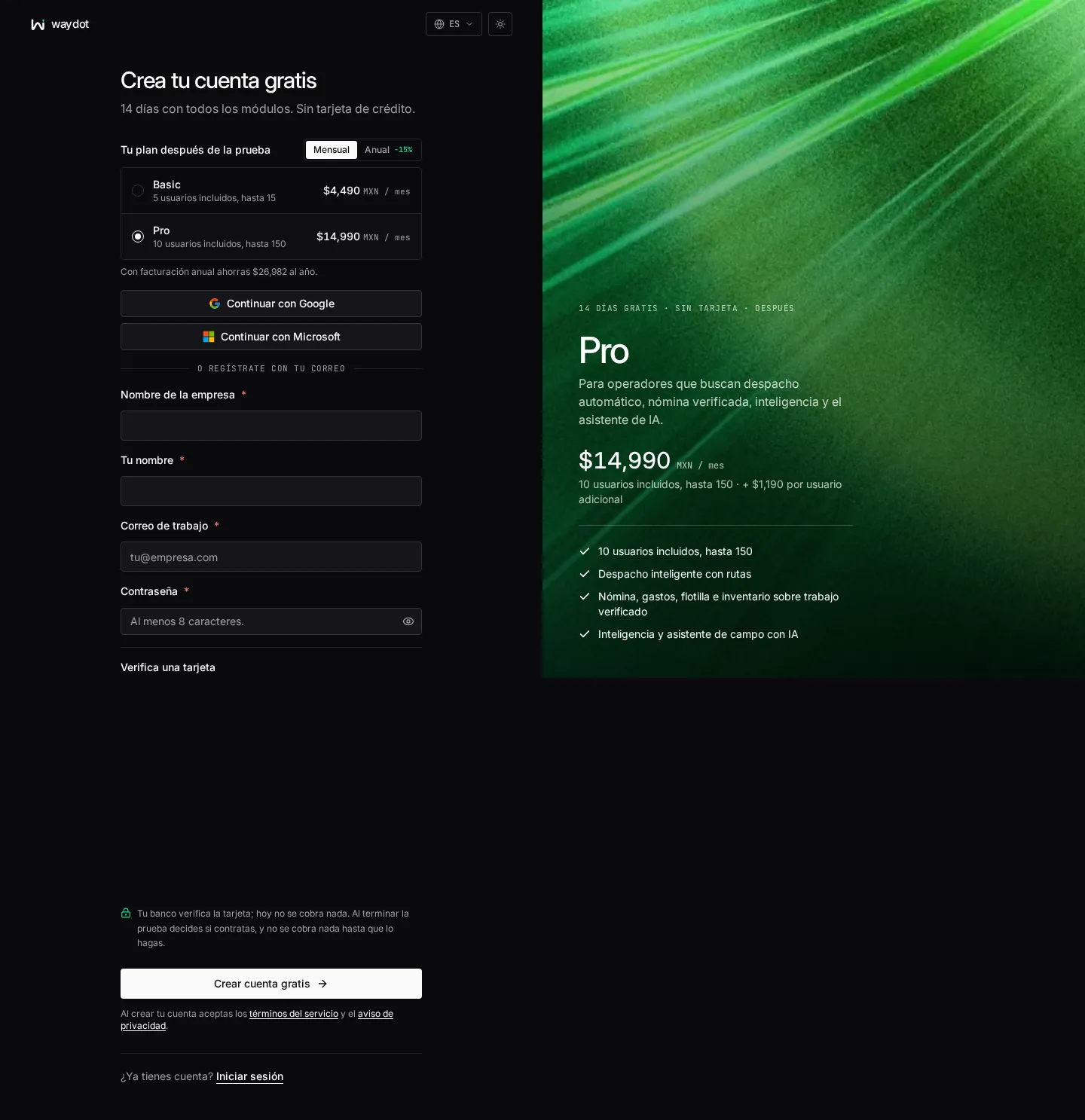
- Open waydot.mx and choose Create free account (or Start your free trial from the sign-in screen).
- Under Your plan after the trial, choose the billing frequency (Monthly or Yearly, which shows the saving) and the plan you expect to buy. The trial includes every module whichever plan you choose; the plan only shows what you would pay afterwards and you can change it when you subscribe.
- Fill in your details, or use Continue with Google / Continue with Microsoft to take your name and email from that account (afterwards you need no password: you sign in with the same button).
- Check the Workspace address proposed from your company name. Use Change if you want a different one.
- If Verify a card appears, enter the card.
- Accept the terms of service and privacy notice with Create free account.
- WAYDOT shows Opening your workspace… and takes you to the console with Welcome to WAYDOT! Your workspace is ready.
- Open the verification email and confirm your address. See Verify your email.
Signup fields
| Field | What it means | Rules |
|---|---|---|
| Billing frequency | Whether you would pay every month or once a year after the trial. Yearly is discounted. | Monthly or Yearly. Can be changed when you subscribe. |
| Plan | The plan you expect to buy. Each row shows how many users it includes, how many it allows and the base price. | Enterprise is quoted; it is not listed here. |
| Company name | Your company's name. It appears in the console, emails and documents for your clients. | Required. Can be changed later in Company. |
| Workspace address | The yourcompany part of yourcompany.app.waydot.mx, where your team signs in. The full address is shown underneath (Your team signs in at…). | 3 to 63 characters; lowercase letters, digits and hyphens only; starts and ends with a letter or digit. Some addresses are reserved. It cannot be changed later. |
| Your name | Your full name, as your team will see it. | Required. |
| Work email | Your sign-in username and the address that receives verification and notices. | Required. Must be a valid address not already registered in that workspace. |
| Password | Your WAYDOT password. A meter shows how strong it is: Too short, Weak, Fair, Good or Strong. | At least 8 characters. Not shown when you sign up with Google or Microsoft. |
| Verify a card | The card your bank confirms; it is processed by Stripe and never reaches WAYDOT. | Only shown when the installation asks for it. Nothing is charged until you subscribe. |
| Promo code | A campaign code. It can extend the trial (Your trial is extended to N days) or discount the first payment. | Only shown when you arrived from a link carrying a code. An invalid code shows That promo code is not valid.. |
Signup links with a plan and add-ons
If a WAYDOT advisor sent you a link, it may arrive with the plan, number of users, add-ons or guided implementation already chosen. Check the side panel, which shows the chosen plan and what it includes.
What happens next
- Your workspace is On trial. The top of the console shows N days of trial left with a Choose a plan button.
- During the trial nothing is charged, and metered services (routes, AI, WhatsApp, stamps) stop at their monthly pool instead of charging overage.
- An email arrives to verify your address.
- The console opens first-run setup, a list of steps to get the workspace ready for the first job.
When the trial ends
If you don't choose a plan, the workspace becomes read-only: your data stays, but nothing new can be saved. Trying to save shows Your trial has ended with Choose a plan; what you typed stays on screen so you can save it once the subscription is active. If your account has no billing access, the notice asks an administrator to do it. See Subscription and plan.
Verify your email
The verification link confirms the address is yours.
| What you see | Meaning | What to do |
|---|---|---|
| Check your inbox | The link was sent and not opened yet. | Open it. If it doesn't arrive in a couple of minutes, check spam or use Send another link (there is a short wait between sends; the button shows Send again in…). |
| Email verified | Confirmed. | Use Continue to dashboard. |
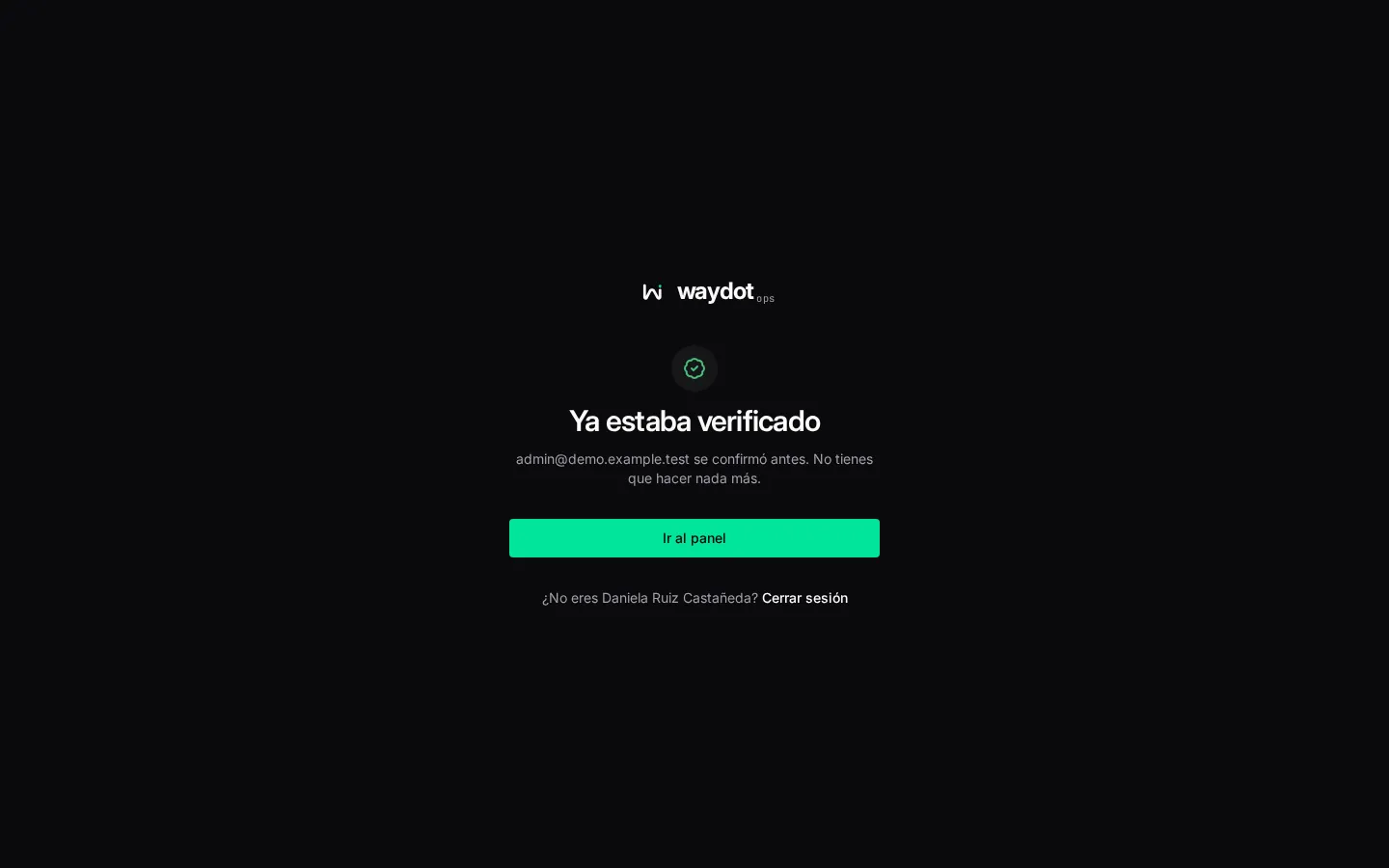
| Already verified | The address was confirmed earlier. | Nothing. |
| This link no longer works | The link expired or the account email changed after it was sent. | Use Send a new link. |
While the email is unverified, the console shows a notice at the top with Resend. If your role also requires two-factor authentication, the notice reads Two things left on your account with the deadline; after that date the console closes until you complete both. See Sign in and security.
Common problems
| Message | Cause | Fix |
|---|---|---|
| That address is reserved | WAYDOT keeps that address. | Choose another. |
| The card could not be verified. Check it or try another card. | The bank declined the check. | Correct the details or use another card; the rest of the form is kept. |
| The security check could not load | The browser blocked the anti-bot check. | Reload the page or allow it for waydot.mx in your blocker. |
| Self-service signup is not open right now | The installation doesn't accept online signups. | Contact WAYDOT to have the workspace created. |
| We could not reach WAYDOT | No connection. | Check your connection and try again. |