

English
Find your way around the console
Every console screen shares the same layout: the side menu on the left, the top bar with the breadcrumb, search and your notifications, and the screen's content.
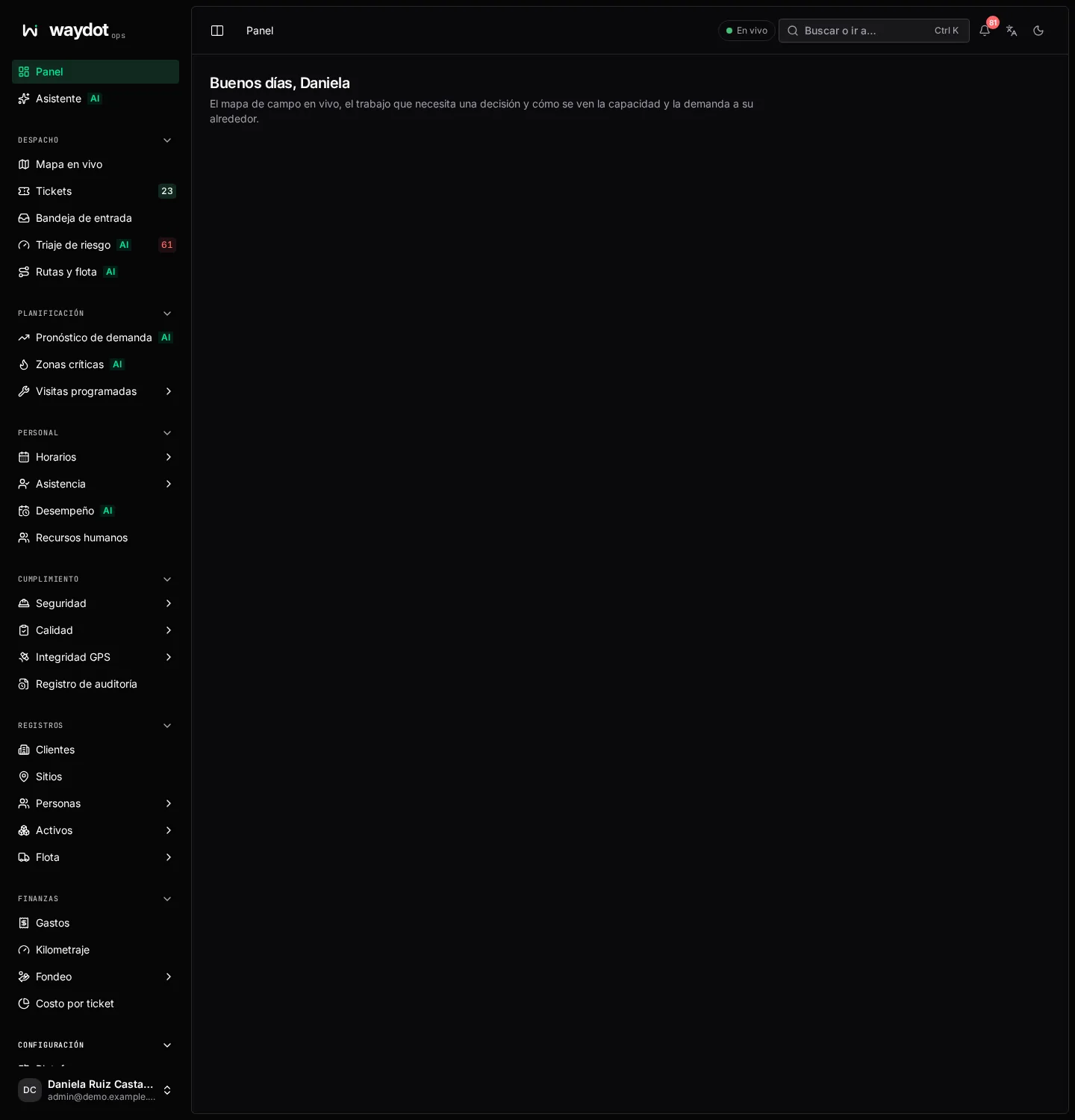
The side menu
The menu groups screens by the job they serve. Each group collapses with the arrow beside its name; the console remembers how you left it.
| Group | What it holds | Guide |
|---|---|---|
| Home | Dashboard and Assistant | Dashboard, Assistant |
| Dispatch | Live map, Tickets, Intake, Risk triage, Routes & fleet | Dispatch |
| Planning | Demand forecast, Hotspots, Scheduled visits | Planning |
| Workforce | Schedule, Attendance, Performance, Human resources | Workforce |
| Compliance | Safety, Quality, GPS integrity, Audit log | Compliance |
| Records | Clients, Sites, People, Assets, Fleet | Records |
| Finance | Expenses, Mileage, Funding, Cost per ticket | Finance |
| Configuration | Platform, Integrations, Roles & access, categories, templates, rules and catalogs | Configuration |
Menu details:
- Sub-screens. Entries with an arrow (for example Schedule or Assets) expand into their screens. The entry itself opens the first one you can see.
- Counters. Some entries show a number: Tickets counts unassigned tickets; Risk triage counts tickets at risk of breaching their SLA.
- AI. The tag marks screens whose data comes from models. They are advisory.
- What you don't see. A screen disappears from the menu if your role lacks the permission to read it or if your plan doesn't include its module. See How WAYDOT is organized.
- The button in the top-left corner (next to the breadcrumb) collapses the menu to icons for more room.
Search or jump to (Ctrl K)
The Search or jump to… box in the top bar opens a search that finds records and screens. It also opens with Ctrl K (⌘ K on Mac).
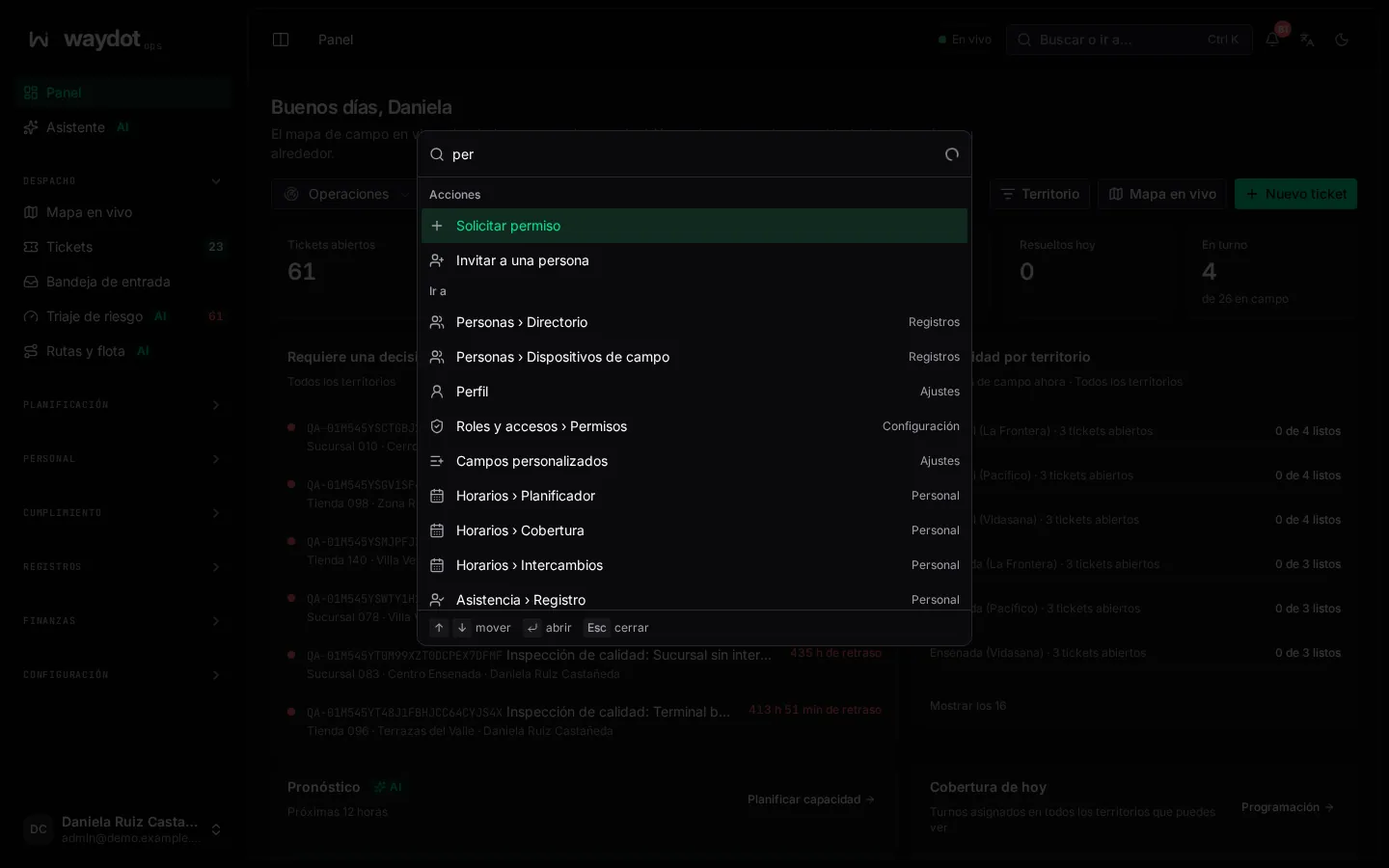
- Type at least 2 characters to search Records: tickets (by reference or title), people, sites and clients. Each kind shows its first results and a See all N matching … link that opens the full list with that filter.
- Go to lists the screens whose name or keywords match. For example, vacation finds Leave and gas finds Fleet.
- There are direct actions: New ticket, Request leave, Invite a person and Account settings.
- Use the arrows to move, Enter to open and Esc to close.
Search respects your permissions: it only finds what you could open.
The top bar
From left to right:
| Element | What it does |
|---|---|
| Breadcrumb | Where you are (for example Tickets › TK-1042). Each part is a link. |
| Connection indicator | Live, Reconnecting, Paused or No network. Hover for details. See Live updates. |
| Trial | During the free trial, N days of trial left with a link to Choose a plan. |
| Search or jump to… | The search described above. |
| Bell | Your notifications. The red number counts unread ones. |
| Language | Switches between Spanish and English and saves it to your profile. |
| Sun / moon | Switches between light and dark mode. |
Notifications
The bell opens your notification inbox: operational alerts (a ticket assigned, an SOS, an SLA at risk, an approval waiting) and account news.
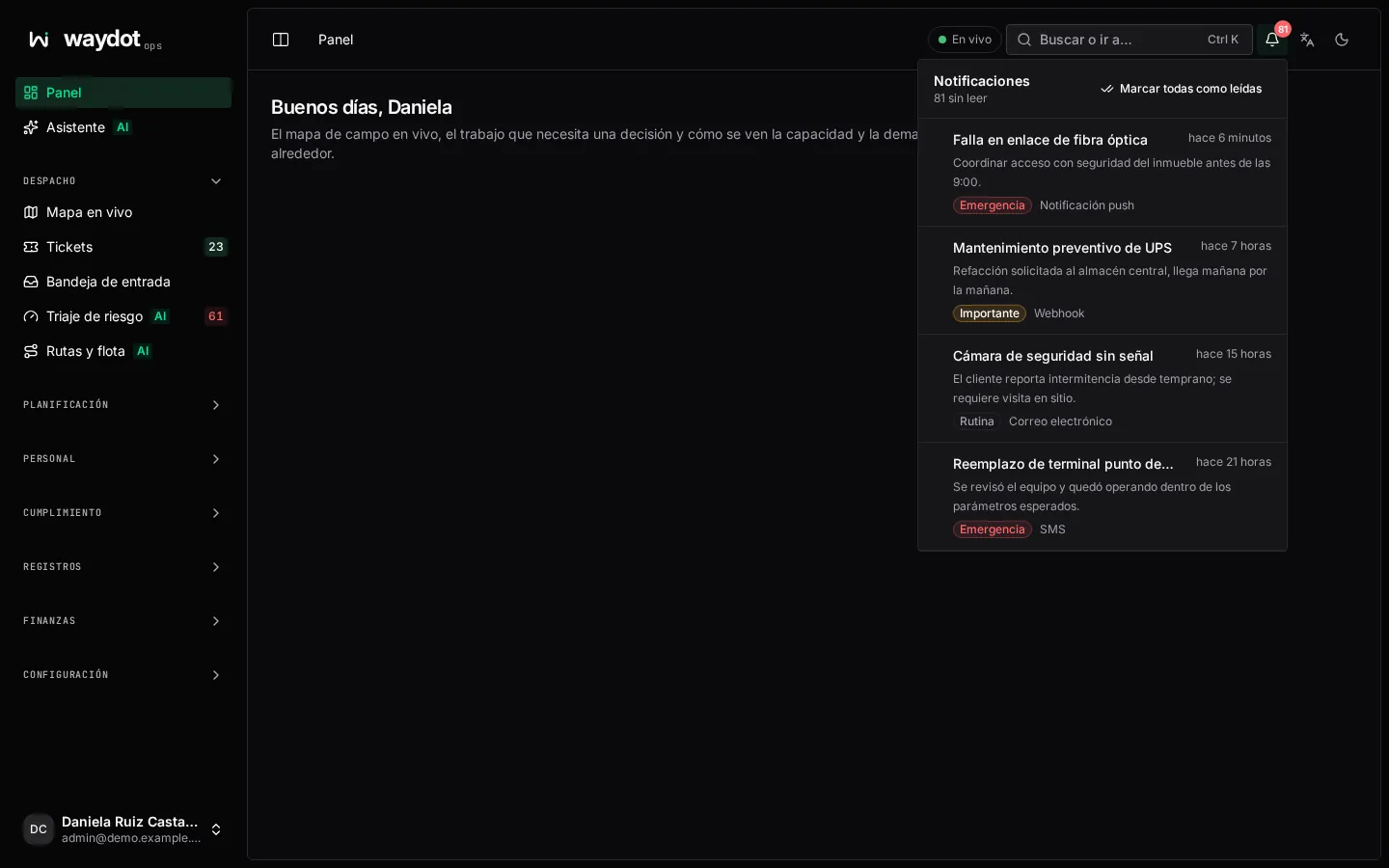
- Unread ones are marked; opening one marks it read and takes you to the record.
- Mark all read clears the counter.
- Show older notifications loads more.
- If your browser doesn't allow it yet, the inbox offers to Turn on browser notifications so alerts sound and show even when you're on another tab.
What reaches you, on which channel (console, email, WhatsApp, push) and at what hours you decide in Your notifications. Which events produce notifications and for whom an administrator decides in Notification rules.
Your account menu
Your name in the bottom-left corner opens a menu with:
| Option | What it does |
|---|---|
| Your account | Your profile. |
| Settings | Your personal settings and, depending on your role, the workspace's. |
| Subscription | The workspace plan (only if you manage billing). During the trial it shows Plan · trial. |
| Invite people | Adds new people. |
| Light theme / Dark theme | Switches the appearance. |
| Help on WhatsApp / Email support | Contacts the WAYDOT team. |
| Sign out | Leaves the console. |
Settings
Settings gathers your personal settings and the workspace's in one column:
| Setting | What for | Guide |
|---|---|---|
| Profile | Name, photo, phone, language, time zone | Profile |
| Security | Password, two-factor, sessions | Security |
| Notifications | What reaches you and on which channel | Notifications |
| Appearance | Mode and color palette | Appearance |
| Getting started | First-run setup | First-run setup |
| Company | Name, logo, careers page, tax details | Company |
| Single sign-on | SSO with the identity provider | SSO |
| Custom fields | Your own fields on tickets, people, clients… | Custom fields |
| Video meetings | Zoom, Google Meet and Microsoft Teams | Video meetings |
| Subscription, Usage, Invoices | WAYDOT plan, usage and invoices | Subscription |
Each appears only if your role can see it.
Tables, filters and records
Most screens are a table of records with the same shape:
- Search on the left and the create button (New ticket, New site…) on the right.
- Filters below, as chips: Status, Territory, Client, Period… Each chip opens a list to pick one or several values; the chip shows how many you picked. Clear filters removes them all.
- Tabs above the table when the screen has several views (for example Roles and Permissions), sometimes with a count.
- Columns sort with a click on the header.
- Pagination at the bottom: 1–25 of 340 tickets.
- Clicking a row opens the record. The ⋯ menu at the end of the row holds quick actions.
Table states:
| What you see | Meaning |
|---|---|
| Nothing here yet | No record of that kind exists yet. Usually offers a button to create the first one. |
| No matches | Records exist, but none match the filters. Widen or clear them. |
| Could not load these records | Loading failed. It does not mean there are no records; use Retry. |
Record pages
Opening a record shows its header (name, state and actions), the content in sections and, on many records, an Activity timeline: who changed what and when (Created, Updated, Assigned, Arrived, Resolved…). What changed shows the old and new value.
Forms
- Fields with * are required. Under each field there is a hint explaining what to enter.
- If something can't be saved, the field with the problem turns red with the reason, and what you typed is kept.
- Long forms get their own page; short ones open in a side panel.
- Saving shows a brief notice at the bottom (… saved). If someone else changed the same record while you were editing, you are told and the data reloads so you don't overwrite their change.
Billing notices
If the workspace is in a billing state that doesn't allow saving, trying to save shows a notice instead of losing your input:
| Notice | Cause | Action |
|---|---|---|
| Complete your first payment | The chosen plan is waiting for its first payment. The workspace is read-only. | Complete payment |
| Your trial has ended | The trial ended without a plan being chosen. | Choose a plan |
| A payment is overdue | An invoice wasn't paid. | Settle the invoice |
| This workspace is read-only | The subscription is suspended or cancelled. | Open subscription |
What you typed stays on screen to save once it's sorted. If you don't manage billing, the notice asks an administrator to do it. See Subscription and plan.
Error screens
| Screen | Meaning |
|---|---|
| Access unavailable | You opened a link to a screen your role or plan doesn't include. |
| Page not found | The link is mistyped or the record no longer exists. |